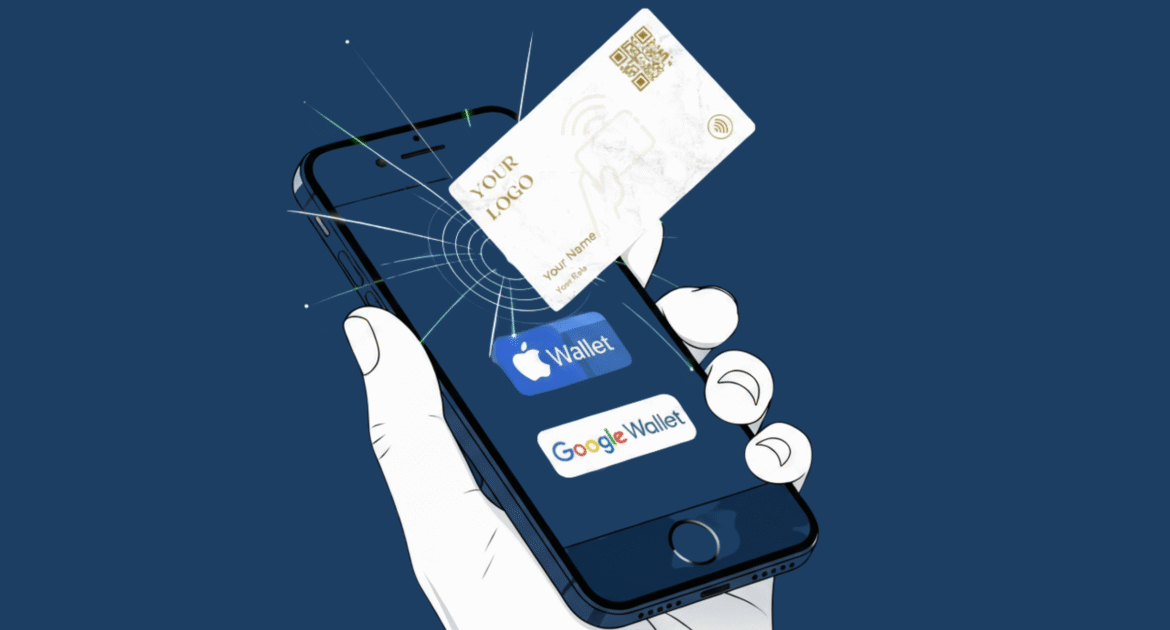
Adding your NFC business card to Apple Wallet or Google Wallet makes networking faster, smoother, and more professional. Instead of carrying a physical card, you can store a digital version in your mobile wallet, allowing you to share contact details with just a tap or scan.
Why Add Your NFC Business Card to a Mobile Wallet?
-
Instant Sharing: Launch your profile directly from your phone’s wallet.
-
Professional Image: Impress contacts with a modern, contactless solution.
-
No Extra App Needed: Works on most smartphones right from the native wallet app.
-
Eco-Friendly: Reduce paper waste while keeping your information up-to-date.
How to Add Your NFC Business Card to Apple Wallet
-
Get Your Digital Business Card URL
Log in to your Let’s Connect Card profile and copy your unique digital card link. -
Generate an Apple Wallet Pass
Use a pass generator that supports Apple Wallet (PassKit, MakePass, or your card provider’s built-in tool). -
Add Contact Info & Branding
Include your name, company logo, and contact details. Add your NFC card link to the pass URL. -
Save to Apple Wallet
Tap “Add to Apple Wallet” and confirm. Your card will now appear in your wallet for instant sharing.
How to Add Your NFC Business Card to Google Wallet
-
Get Your Card URL
From your Let’s Connect dashboard, copy the link to your NFC business card. -
Use a Google Wallet Pass Creator
Services like Google Pay API for Passes or NFC card platforms can generate the pass. -
Fill in Details
Add your name, business logo, and contact link. -
Save to Google Wallet
Tap “Save to Google Wallet” and confirm. Your card is now ready for tap-to-share networking.
Pro Tips for Wallet-Ready NFC Business Cards
-
Use a Short, Memorable URL: Makes QR display easy for quick scans.
-
Add a QR Code on the Pass: Ensures compatibility with devices that don’t have NFC.
-
Test Before Events: Try sharing your card on both Apple and Android devices.
-
Pair with a Physical NFC Card: Combine your digital wallet card with a Smart NFC Business Card for maximum reach.
FAQs
1. Do I need an app to use NFC in Apple or Google Wallet?
No, both wallet apps natively support NFC and QR code passes.
2. Will my wallet card work offline?
Yes, but any links on the card require internet access to open.
3. Can I update my wallet card info?
Yes. Changes to your Let’s Connect profile can sync automatically if your pass supports dynamic updates.