
How to Reset an NFC Tag: Step-by-Step Guide
Last updated:
Learn how to reset an NFC tag, check if it can be rewritten, erase its data, and confirm it’s ready for new information.
Old data still pops up when you tap an NFC tag? The tag may need an erase, or it may be locked. Here’s how to check it, clear its stored message, and test it before writing new information.
We analyzed 5 top-ranking guides for resetting an NFC tag (online-tech-tips.com, softhandtech.com, robots.net, docs.sentinum.de, and sites.google.com/view/nfccc) and found that none of the 5 distinguished a locked tag from a password-protected one. Only 1 of the 5 covered iPhone antenna placement and only 1 covered verifying the reset by scanning again before reuse.
Step 1: Identify the Tag and Save Any Data You Need
Start by reading the tag before you reset it. An NFC tag is a small chip that stores data for a nearby phone to read. Most common uses store an NDEF message, such as a web address or a short text note.
Open an NFC reader app and scan the tag. Check what it contains, note its tag type if the app shows it, and look for its size or writable status. An NFC application note can provide technical background on NFC tags.
Save any content you may want again. Take a screenshot or copy the full URL into a note. A tag that links to an old staff profile, for example, may still hold a useful web address even if that page has changed.
Keep the tag’s unique ID separate from its message. Erasing usually clears the writable message, not the factory-set ID. That ID can’t be changed on most tags. A tag may also have lock bits that block future writes, so don’t assume every scan-ready tag can be reset.
For a business card, first decide whether you need to erase the chip or only change the profile it opens. With LetsConnect, a web dashboard can reset or reprogram a tag using an NFC-enabled smartphone, without installing an extra app. That can be simpler when your goal is to update a contact page rather than keep a local copy of the old message.
Key Takeaway: Read the tag and save anything you might need before clearing its stored message.
Step 2: Check That the NFC Tag Is Writable
Before you try to reset an NFC tag, confirm that it can accept writes. A tag may be blank, writable, password-protected, or permanently locked as read-only. Those states need different next steps.
Use the app’s read or scan view to check the tag type, stored message, capacity, and write status when shown. If it reports that the tag is read-only, an erase command won’t make it writable again. A password-protected tag is different: it may still be reused if you have the correct password.
On Android, turn NFC on in Settings. The menu name varies by phone, so search Settings for “NFC” if you don’t see it under Connections or Connected devices. Our Android NFC setup instructions can help you find the right control on your device.
On iPhone, use an NFC writing app for erase and format tasks. Apple’s built-in tag reading features don’t replace a dedicated writing app for this job. Some older iPhone models may also need the NFC Tag Reader added to Control Center for quick reading. Control Center options can vary by phone and iOS version.
Check capacity before choosing the replacement content. A short link may fit while a long block of text does not. If the app shows the tag type but not usable space, keep the new message short and test the write before relying on it.
If your phone can’t read the tag, don’t jump straight to an erase. Enable NFC, wake and unlock the phone, then hold it steadily near the tag. On an iPhone, try the top edge near the rear camera area. On Android, try the upper or middle back, then move it slowly to find the antenna.
By now you should know whether the tag is writable, locked, or asking for a password. If the app shows a lock or authentication prompt, pause and find the tag maker’s instructions before trying more commands.
Step 3: Erase the Tag With an NFC Writing App
Once you’ve confirmed the tag is writable, use an NFC writing app to clear its NDEF message. NFC Tools is one common choice on Android and iPhone. The menu labels can change between app versions, but the erase option is usually grouped with other tag actions.
On many versions of NFC Tools, open the app and choose Other or More. Select Erase tag , then follow the prompt to scan the tag. Hold the phone steady until the app confirms the erase. A typical erase writes a blank NDEF message, leaving the tag ready for new content.
On Android, keep the app open while you scan. If the phone asks which app should handle the tag, choose the writing app. On iPhone, open the app first, then hold the top of the phone close to the tag. The antenna position differs by model, so move the phone slowly if the app doesn’t detect it.
An erase removes the data on the physical tag. Deleting a link or automation inside another app may not remove the message stored on the chip. If an old action still opens after you changed an app setting, scan and erase the tag itself.
Here’s a short visual example of the app-based flow:
Keep the phone still until you see a success message. If the app reports an error, don’t repeat the command over and over. Check NFC, permissions, tag position, and lock status first.
Pro Tip: Erase one tag at a time and label it after a successful test, especially when you’re preparing several cards for a team.
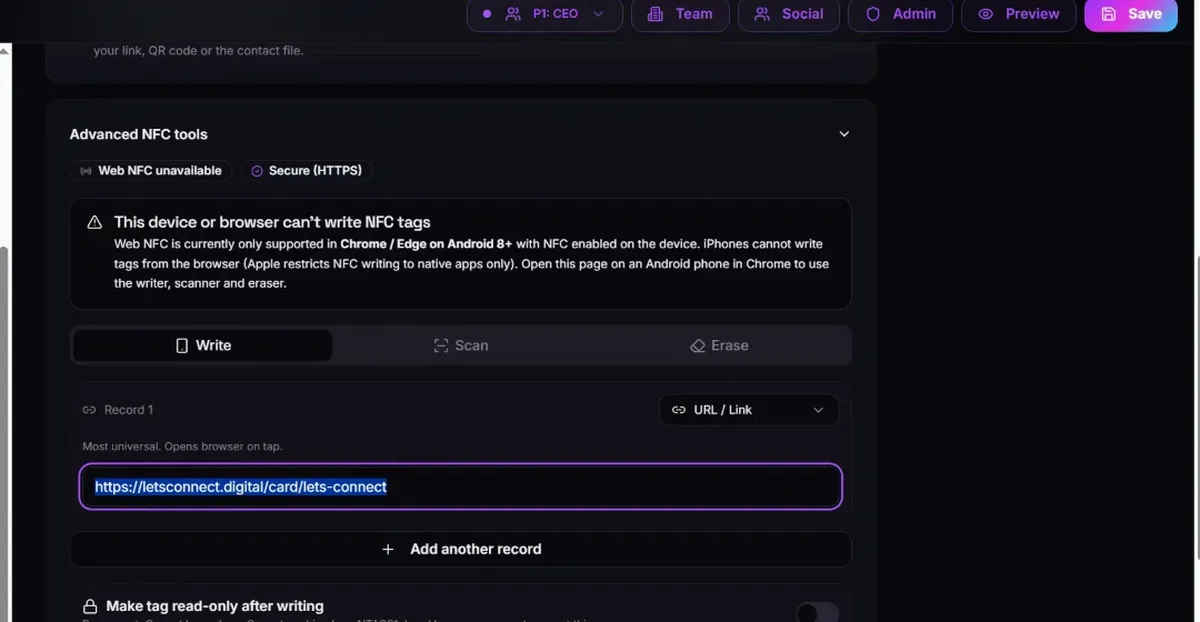
Our NFC business cards and NFC Google review cards point to a link you manage, so most changes happen in the dashboard without erasing the tag.
Step 4: Try an Alternative Erase Method if Needed
If the usual erase button fails, find out why before changing methods. A failed scan can come from phone settings or antenna position. A lock or password issue comes from the tag itself. The fix depends on which one you’re seeing.
First, toggle NFC off and back on. Restart the phone, reopen the writing app, and scan again. Remove a thick case or metal wallet from the phone. Hold the tag still rather than tapping quickly, and move it a small amount at a time until the reader detects it.
On iPhone, make sure the screen is awake and the tag is close to the phone’s NFC antenna. If your model has an NFC Tag Reader control in Control Center, add it there for quick access. On Android, check that the writing app has the permissions it asks for, including NFC access where applicable.
If the app reports a password prompt, use the tag’s known password or the tag maker’s documented process. Don’t try guessed default keys or random unlock commands. That can raise security risks, and the wrong command may not match the tag. A tag that was permanently set to read-only cannot be reset through a normal erase.
There’s also a difference between a quick erase and a low-level overwrite. For ordinary reuse, clearing the NDEF message is usually the right choice. A full overwrite reaches beyond the normal message area and should only be attempted with a compatible tool and clear instructions for that exact tag type.
If the tag remains read-only or reports an error after these checks, look for a tag-specific recovery method from its maker. Some advanced setups use a separate NFC reader and low-level software, but they aren’t a safe next step for every user. If the tag is valuable, stop before writing raw memory or configuration blocks.
Use a tool’s documentation for its supported tag functions, and replace a tag if the maker confirms it can’t be unlocked or recovered.
Step 5: Verify the Reset and Write New Information
After erasing, scan the tag again before adding new data. The reader should no longer show the old NDEF message. If it still appears, the erase may not have completed, or the tag may not have been the one you intended to scan.
Write a small test message first, such as a short URL. Review the full address before you tap the tag. Check the beginning of the link and make sure there are no extra spaces. Keep the phone in place until the app confirms that the write finished.
Now read the tag again inside the writing app. Confirm that the saved record matches what you meant to write. Then close the app and tap the tag with a phone as a recipient would. This second check catches a link that looks right in the app but opens the wrong page.
If you’re updating a business card, you may not need to rewrite the tag each time your details change. A managed profile can let you update the page behind the card’s link. Our NFC card URL update guide explains how to change a card’s destination on iPhone or Android.
For professionals and teams, LetsConnect’s Premium NFC and Digital Business Cards pair tap-to-share with a web dashboard for managing the digital profile. The recipient doesn’t need an app to view shared details. That can reduce the need to reprint cards when a role or web link changes.
Choose a simple test before putting a reset card back into use: read the stored record, tap it outside the writing app, and confirm the page is current. LetsConnect offers metal, premium PVC, and eco-friendly wood options, with free worldwide shipping.

Frequently asked questions
Can you reset an NFC tag without an app?
Yes, some NFC workflows let you manage a tag through a web dashboard instead of a separate phone app. With LetsConnect, the web dashboard can reset or reprogram a tag using an NFC-enabled smartphone. For other tags, use a compatible writing app unless the tag maker provides another supported method.
Can a locked NFC tag be reset?
A permanently locked, read-only tag usually can’t be reset. Password protection is different: you may be able to rewrite the tag if you have the correct password. Check the app’s message and the tag maker’s instructions before trying an unlock command. If the tag is permanently locked, replace it.
Does erasing an NFC tag change its UID?
No, erasing normally clears the writable message, not the tag’s factory-set UID. Most tags don’t let you change that unique ID. If an app shows an ID after the reset, that doesn’t mean the erase failed. Check whether the old message is gone instead.
Why won’t my phone detect an NFC tag?
First check that NFC is on and that your phone is awake. Hold the tag still near the phone’s antenna, then move it slowly to find the right spot. Remove a thick case or metal accessory. If it still fails, restart the phone and try a second known NFC tag to see whether the problem is the phone or tag.
Conclusion
Use a writing app for a standard erase, and stop if the tag is permanently locked or asks for a password you don’t have. Scan it once more, write a short test link, and confirm it opens before putting the tag back to work.
More questions about resetting NFC tags
Can every NFC tag be reset?
No. A writable or blank tag can be erased, but a tag that is permanently locked as read-only cannot be reset. A password-protected tag may still be reused if you have the correct password.
How do I know if an NFC tag is locked?
Scan the tag with the read or scan view of an NFC app. It shows the tag type, the stored message and, when available, the write status. If it reports the tag as read-only, an erase command will not make it writable again.
Can I reset an NFC tag with an iPhone?
Yes, with an NFC writing app such as NFC Tools. Apple’s built-in tag reading does not replace a writing app for erasing, and an iPhone cannot write or erase a tag from a web browser.
Does erasing an NFC tag damage it?
A normal erase clears the stored message and does not change the tag’s factory-set ID. The tag can then take new data. Avoid lock options while you write, because a permanently locked tag cannot be changed again.
How many times can an NFC tag be rewritten?
Writable tags are built to be rewritten many times, and the exact limit depends on the chip, so check the maker’s specification. Once a tag is locked it cannot be rewritten at all. On an NFC business card linked to a profile you usually edit the profile instead of rewriting the tag.
Skip the reprint
With a digital card behind your NFC tag, you update your details online instead of erasing and rewriting the tag every time something changes.
Get your free digital business cardWhy Lets Connect is the best digital business card
- Free to start: a digital card with your own link and QR code, no card details needed.
- Pay once: no monthly fee for your card or your lifetime plan.
- The follow-up is built in: lead capture, a CRM, a card scanner, bookings, forms and review links in one dashboard.
- No app on either side: it opens in the browser on iPhone and Android.
Related articles
- Best Digital Business Cards in the UK (2026): 8 Compared on Price and Features
- UC Awards 2026: Why Lets Connect Was Named a Rising Star Finalist
- Our Aim: To Lead the Business Card Category Worldwide by 2028
- Going to The Business Show London? Don't Bring Business Cards
- Best NFC Tools for iPhone: 9 Cards and Apps
- Best Business Card Apps for Professionals