
How to Turn On NFC on Android
Find out how to turn on NFC on Android, check phone support, locate the setting by brand, and fix common tag-reading or payment issues.
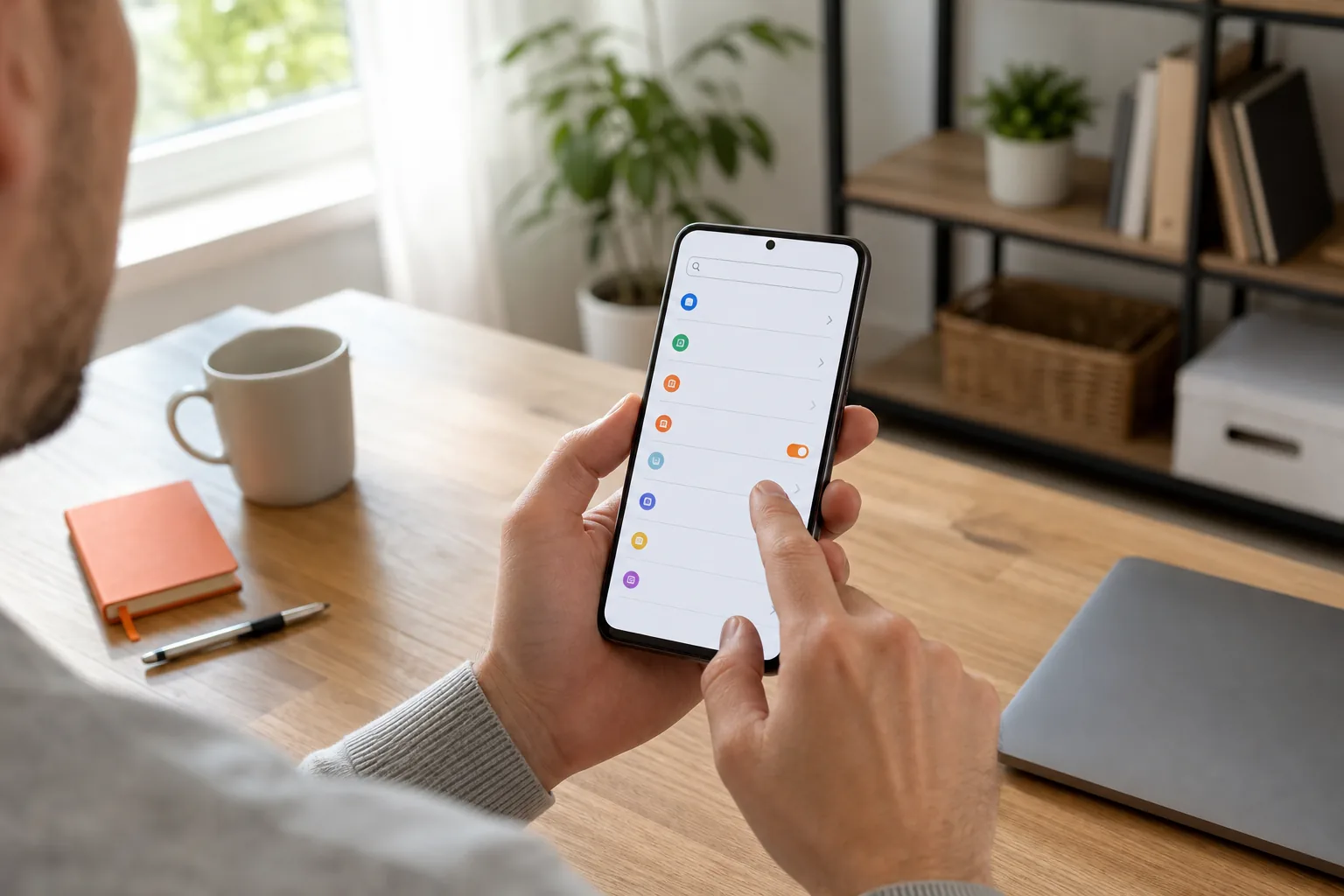
Trying to tap your phone and getting no response? To turn on NFC on Android, first check that your phone has the hardware, then find the switch in Settings. The path changes by brand, and some regional models don’t include NFC at all.
We analyzed 34 comments and questions from Reddit, YouTube and Quora about turning on NFC on Android and found that 44% mentioned automation triggers for NFC activation.
Step 1: Check Whether Your Android Phone Has NFC
NFC means Near Field Communication. It lets a phone exchange small amounts of data with a nearby tag or reader when you hold the devices close together.
Start with Settings. Open the app, tap its search field, and type NFC. If a matching setting appears, open it and look for a switch. If the search returns nothing, your phone may not have an NFC chip.
Don’t assume the feature is missing just because one menu looks different. Phone makers file the switch under different labels, such as Connections, Connected devices, or More connections. HONOR’s advice for checking NFC support also points to Settings search and the phone’s model specifications.
If Settings gives you no answer, look up the exact model number on the manufacturer’s official site. Check the connectivity section for NFC. This matters for regional variants: some Xiaomi, Redmi, and POCO phones sold in India ship without an NFC chip, even when a similar model in another market has one.
You can also check the manual or the original box. Look for NFC under features or connectivity. A tag test can help too, but only after you’ve confirmed that NFC is on. Hold a known NFC tag near the back of the unlocked phone and watch for a prompt.
For a card tap, the recipient’s phone needs NFC support as well. Our NFC business card compatibility guide explains what to check before you rely on a tap to share contact details.
If the feature doesn’t appear in Settings or the exact model specifications, a software update can’t add the missing hardware. Try the next step if you do find the setting.
Step 2: Turn On NFC in Android Settings
Once you’ve confirmed support, switch NFC on in Settings. The fastest route is usually to search for “NFC” and open the result. Tap the switch so it shows as enabled.
If you want to find it by hand, use the path that matches your phone:
- Samsung: Settings → Connections → NFC and contactless payments.
- Honor: Settings → More Connections → Wireless & Networks → NFC. Some phones use the label “NFC and Contactless Payments.”
- OnePlus: Settings → Connection & sharing → NFC.
- Xiaomi, Redmi, or POCO: On HyperOS, try Settings → More connectivity options → NFC. On older MIUI versions, try Settings → Connection & sharing → NFC.
- Pixel and other near-stock Android phones: Settings → Connected devices → Connection preferences → NFC. Some versions shorten the path.
Names and menu order can shift with software updates. If one path doesn’t match your screen, return to Settings search instead of guessing through unrelated menus.
For contactless payments, turning on NFC is only one part of setup. Your phone also needs a payment app set as the default for tap-to-pay, and the payment card must be ready in that app. Google Wallet’s setup instructions say to enable NFC before moving on to payment-app setup, while Motorola’s NFC support guide notes that the option won’t appear on phones without NFC support.
We make LetsConnect NFC business cards for tap-to-share contact details, social profiles, or a portfolio. The person receiving your card doesn’t need a special app. Their phone does need NFC enabled to read the card by tapping.
By now, you should have the NFC switch turned on. If the menu path was hard to remember, add the control to Quick Settings next.
Step 3: Enable NFC From Quick Settings or a Manufacturer Menu
Some Android phones let you toggle NFC from Quick Settings. Swipe down from the top of the screen twice to open the full panel. Look for an NFC tile, then tap it to switch NFC on or off.
No tile? Tap the pencil or Edit button in Quick Settings. Find NFC in the list of available tiles, then drag it into the visible panel. The edit control’s name and location vary by phone, so look along the bottom or top edge of the panel.
Not every Android model has a Quick Settings tile for NFC. If you can’t add one, use Settings search or follow your phone’s menu path. On Samsung, the switch is under Connections. On OnePlus, NFC sits in Connection & sharing, alongside other connection controls. That grouping can make it easy to overlook.
Xiaomi, Redmi, and POCO users should check the software version before following instructions from another model. HyperOS and older MIUI versions place NFC in different menus. And if no NFC setting appears, check the exact model and region before treating it as a hidden toggle.
Some near-stock Android builds may turn NFC off after a restart. Airplane mode can also switch it off on some phones, and it may not turn back on when Airplane mode ends. Check the tile or Settings after either event before testing a tag.
Quick check: A lit or highlighted tile usually means the setting is on. Open Settings to confirm if the tile’s state isn’t clear.
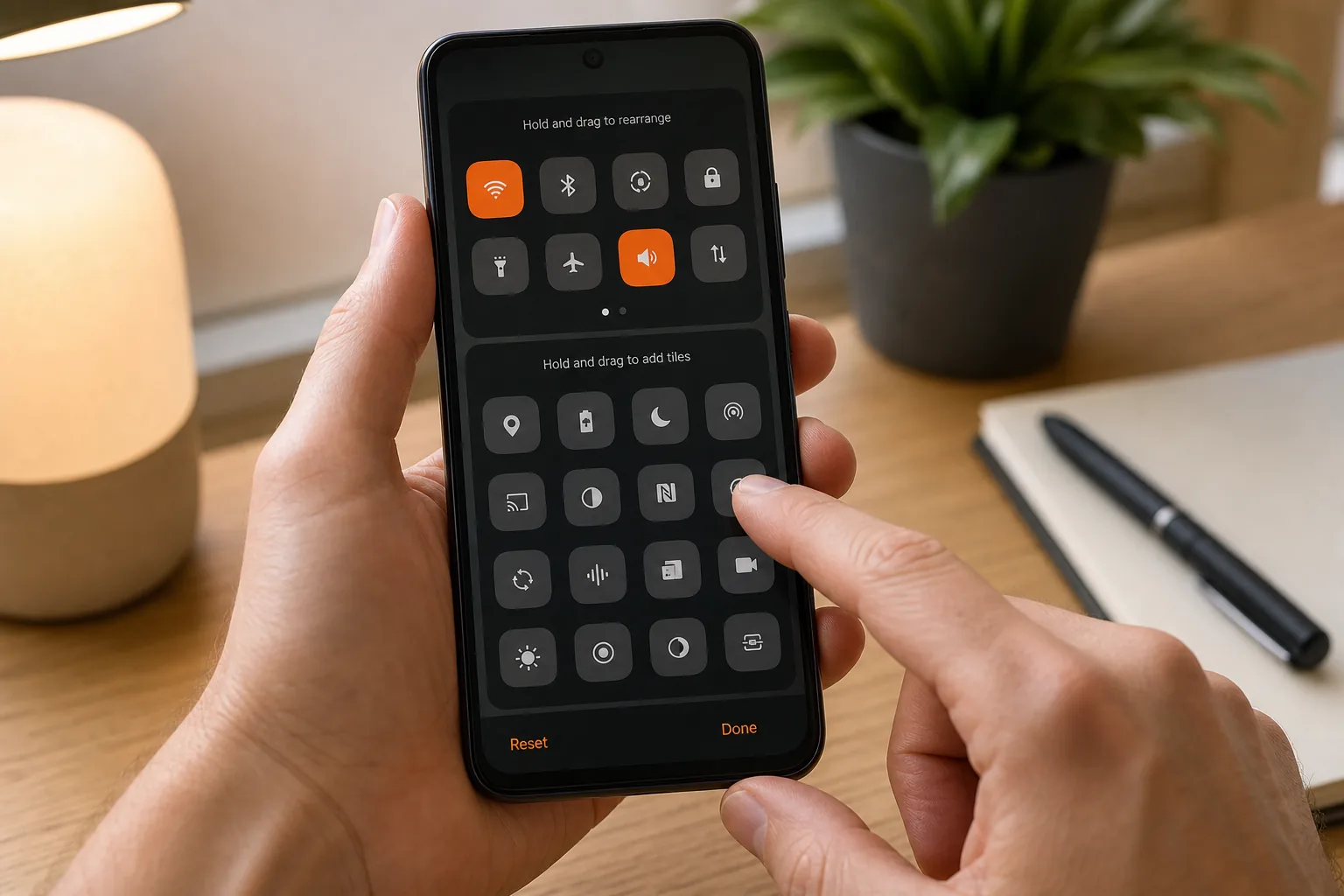
A tile saves a few taps, but it doesn’t replace payment setup. If you’re turning NFC on for a wallet, check the payment app’s default setting too.
Step 4: Confirm NFC Is On and Test a Tap
Test with an NFC tag before relying on a card tap or payment. Make sure NFC is enabled, wake and unlock your phone, then hold the back of the phone close to the tag. Keep it still for a moment. A link or action prompt is a sign that the phone read the tag.
The antenna’s location varies by model. Start near the middle or upper part of the back, then move the tag slowly if nothing happens. A fast tap can miss the reading spot. Remove a thick or metal case while testing, since some cases can interfere with the signal.
A tag-reading app can help you check a tag’s contents, but you don’t need one just to confirm that a simple tag works. Android can handle supported tag data and send it to an app that can open the content.
For payments, test at a payment terminal only after you’ve set up your payment app and chosen it as the default. Keep the phone awake and unlocked if the wallet asks for it. Hold the back of the phone near the reader rather than pressing the screen against it.
Older Android phones may support Android Beam, a former way to start sharing by bringing two phones together. Android Beam was removed from newer Android versions; newer nearby sharing methods don’t use NFC to start a transfer. So, a failed phone-to-phone share doesn’t by itself prove that NFC is broken.
With LetsConnect, a tap can open a web profile with contact details and links. No app is required for the recipient to view the profile in a browser. If NFC isn’t available on someone’s phone, a QR code gives them another way to reach it.
Only tap tags you trust. Before opening a link or following a prompt, check what the phone says the tag will do. Don’t approve an action just because the tag was easy to scan.
Step 5: Troubleshoot NFC That Won’t Turn On or Connect
If the NFC switch is missing, check your exact model’s official specifications. Some phones, including certain regional variants, don’t have the required chip. There’s no setting or app that can add it.
If NFC is on but a tag won’t read, work through these checks in order:
- Unlock the phone. Wake the screen and unlock it before testing. Some uses require an unlocked phone.
- Move the tag. Hold it near the back and shift it slowly across the upper or middle area. Keep the phone still for a moment.
- Remove the case. Try again without a thick, metal, or magnetic case.
- Test another tag or reader. This helps show whether the problem is with the tag, the reader, or the phone.
If Settings still shows NFC as off, switch it on again after leaving Airplane mode. On some near-stock phones, a restart can also leave NFC off. Check the tile or Settings rather than assuming the earlier state stayed the same.
For a payment problem, check the payment app separately. Confirm that it’s set as the default tap-to-pay app and that the card setup is complete. If NFC reads a tag but payments fail, the issue may be with the payment setup rather than the NFC radio.
A restart is a sensible next test if the switch is on but the phone won’t read any tag. Then check for a system update. If the problem continues across more than one tag, reader, or payment terminal, the phone may need service. HONOR also recommends checking phone support and alignment when NFC reads a physical card slowly or not at all.
For privacy, treat a tag like a link you didn’t request. Read the on-screen prompt before opening a page or starting an action. NFC works at close range, but that doesn’t make every tag trustworthy.
If you’re using a LetsConnect card at a meeting, a failed tap doesn’t have to end the handoff. Ask the other person to enable NFC or scan the QR code instead. We offer premium NFC cards with free worldwide shipping on qualifying orders.
Frequently asked questions
How do I know if my Android phone has NFC?
Search for “NFC” in your phone’s Settings app. If a setting appears, open it to check the toggle. If nothing appears, look up the exact model number on the manufacturer’s official site and check its connectivity details. Some models sold in particular regions omit NFC, even when a similar version of the phone includes it.
Why can’t I find NFC in Android Settings?
The phone may not have NFC hardware, or the setting may sit under a different menu name. Search Settings for “NFC” first. If there’s no result, check the exact model and regional version in its official specifications. If NFC is supported, try the Connections or Connected devices menus.
Does NFC need to stay on for tap-to-pay?
Yes, NFC must be on for a phone to make a contactless payment. You’ll also need a payment app set up with a card and selected for tap-to-pay. Follow the wallet app’s setup steps, then unlock the phone if it asks. NFC being on by itself doesn’t finish payment setup.
Can I turn on NFC from Quick Settings?
Some Android phones have an NFC tile in Quick Settings. Swipe down twice and look for it. If it’s missing, open the panel’s Edit or pencil control and see if NFC is available to add. If your phone has no tile, turn NFC on through Settings instead.
Why does my phone stop reading NFC tags?
Check that NFC is still on, then unlock the screen and try again without a thick or metal case. Move the tag slowly across the back of the phone, since the antenna spot differs by model. Test another tag too. If several tags fail after a restart and update check, seek device support.
Conclusion
Search Settings for NFC first, then use your phone’s brand-specific menu if needed. Once the toggle is on, test with a tag before you depend on a payment or card tap. If you’re sharing contact details, a LetsConnect card can make that handoff a quick tap-to-share.
Why Lets Connect is the best digital business card
- Free to start: a digital card with your own link and QR code, no card details needed.
- Pay once: no monthly fee for your card or your lifetime plan.
- The follow-up is built in: lead capture, a CRM, a card scanner, bookings, forms and review links in one dashboard.
- No app on either side: it opens in the browser on iPhone and Android.