Free vCard QR Code Generator: Create a Contact QR Code
Last updated:
Use a free vCard QR code generator to make a contact code, choose static or dynamic, download it, and test it before sharing or printing.
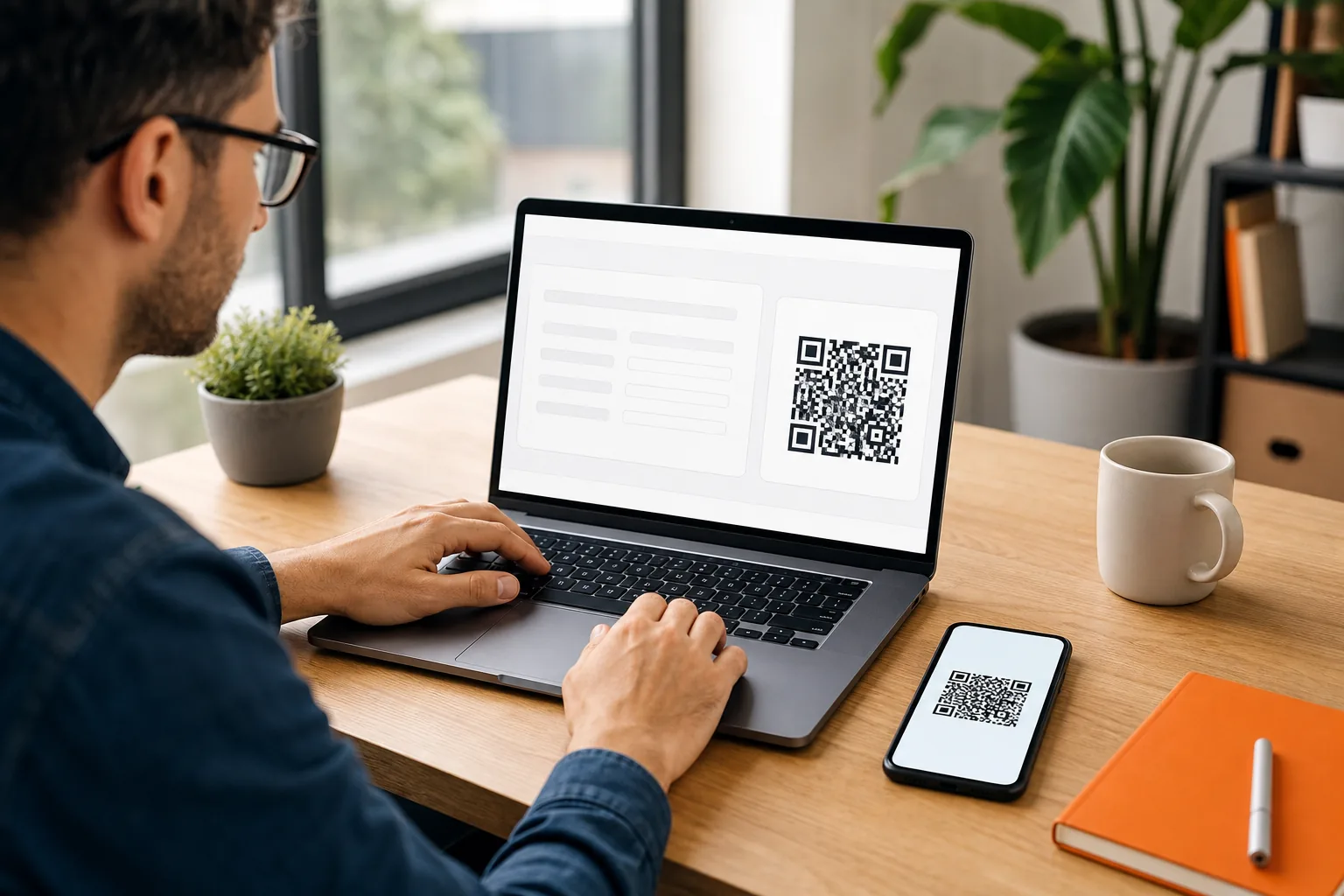
A free vCard QR code generator can turn your contact details into a code people scan to save your information. The catch is that “free” may still mean ads, limits, or fewer design choices. Follow these steps to make a code that fits your needs and works before you share it.
We analyzed 33 comments and questions from YouTube and Quora about free vCard QR code generator and found that 21% mentioned customization options for vCard QR codes.
Step 1: Prepare Your Contact Details and Pick a Generator
A vCard QR code stores contact details in a format a phone can read. When someone scans it, their phone shows a contact preview and lets them choose whether to save it. The vCard format is a standard for contact data.
Before opening a generator, decide what you want to share. A simple professional card often needs your name, work email, main phone number, company, job title, and one website. Add an address only if people need it. More fields can make the QR pattern denser, which may affect scanning when the printed code is small.
Check each field for spelling and accuracy. Use an international phone format if you expect contacts in more than one country. Decide whether your website field should point to your portfolio, booking page, or professional profile. If you want several social links, consider a profile page that gathers them together; one vCard URL field may not hold every destination.
Next, choose between a static and dynamic code. A static code keeps the contact data inside the QR image. It can keep working without an account or hosted page, but a change to your details means making and sharing a new code. A dynamic code points to an online profile that may be editable and may include scan analytics. Check the tool’s plan terms before you rely on those features.
A free label alone doesn’t tell you what the generator includes. Some free options show ads or limit features; ME-QR, for example, says its free version contains ads. Compare the generator’s limits with your needs, or use our vCard QR code generator comparison to review the kinds of features to look for.
Key Takeaway: Pick a static code for stable details, or a dynamic profile if you need edits after printing.
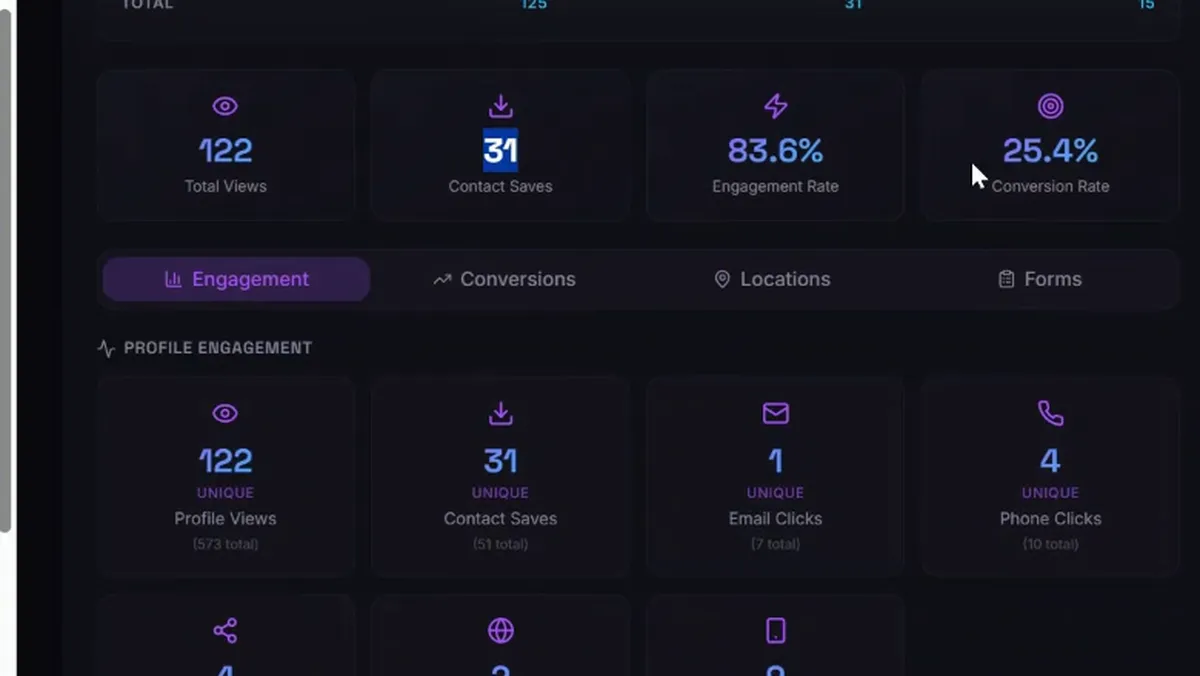
If you need edits after printing, our digital business cards work like a dynamic code you control, and you can create a free digital business card to try it.
Step 2: Enter Your Information and Generate the QR Code
Open a generator that supports vCard or contact QR codes. Choose that format, then fill in the fields you decided to share. Most tools let you leave fields blank. That keeps the contact record focused and can help keep the QR code less dense.
Review each entry as you type. Check that your email address is correct and that your website starts with the right address. If the form has separate first-name and last-name fields, use them as intended. If it has one name field, enter the name as you want it to appear in the recipient’s contacts.
Keep the QR payload focused on contact details. A vCard can hold fields such as name, phone, email, company, job title, and web address. Some tools support extra fields, such as social links, but support varies. A photo can also add a lot of data, so check whether the generator supports it and whether it affects the code’s size.
When you’re ready, select the option to generate or preview the code. Scan the preview with your own phone if the tool allows it. Confirm that the contact preview shows the right person and that the fields appear in the right places. A QR code can scan correctly and still contain a typo, so inspect the contact itself.
Contact formats define how fields are represented. A generator handles that formatting for you, including details that can trip up a hand-built contact record. For a basic contact code, you shouldn’t need to write the vCard text by hand.
Save the generated code only after checking the preview. If you’re making codes for a team, create one contact at a time unless the tool clearly supports batch generation. Batch tools can save time, but each employee’s details still need a review before the codes go onto badges or cards.
Step 3: Customize and Download Your vCard QR Code
Make the code easy to scan first, then make it fit your design. If the generator offers color controls, keep the code dark and its background light. Strong contrast helps a phone camera find the pattern. Avoid placing text or graphics over the code’s clear border.
Some generators let you adjust dot shapes or add a frame. A logo may help tie the code to your brand, but placing an image in the center can cover data. If you try a logo, scan the finished design on more than one phone before using it. Don’t assume a design that looks good on screen will scan well when printed.
Choose a file format that suits where the code will appear. PNG works well for many digital uses. SVG is a vector format, so it can scale for print without becoming pixelated. Some tools also provide PDF or EPS. Check the export options before you finish, especially if a print shop needs a particular file type.
A static code is a fixed snapshot of your vCard. It won’t gain scan tracking or become editable just because you download a different image format. A dynamic QR code may support later edits or analytics, depending on the service and plan. ME-QR describes scan statistics and dynamic code features, while its free version includes ads. Confirm the current terms before choosing a code for a campaign.
If you want people to reach several places, put a single useful link in the vCard, such as your profile page. That page can point to your portfolio or social accounts. Payment links can work as a web destination when the generator accepts the address, but they aren’t a substitute for contact fields in a vCard.
LetsConnect gives you another way to share a professional profile. Our NFC cards use tap-to-share, and the digital profile can hold contact details, social profiles, and portfolio links. No app is required for someone to open the profile.
Download the best-quality file the generator provides for your use. Keep the original file somewhere you can find it. If your role or details change later, you’ll know which code needs replacing.
Step 4: Test the Code Before You Share or Print It
Test the actual file before you put it on a business card, badge, or slide. Open the camera on a phone and scan the code at the size and distance people will use. If it’s meant for a printed card, print one sample first. A code that scans when enlarged on a laptop may fail when reduced on paper.
Check the contact preview field by field. Confirm the name, phone, email, company, and website. Tap links when possible. Save the contact to a test address book, then open it to see whether the fields landed in the right places.
Try the code on both an iPhone and an Android phone if you can. Camera behavior and contact previews can differ. Test in the lighting where the code will be used, too. A glossy card may reflect overhead lights; a dark background or low contrast can also make scanning harder.
Leave clear space around the code. That blank margin helps the camera find the edges. Keep the code large enough for the expected scan distance, and don’t crowd it with a logo, border, or nearby text. For a printed business card, use a test copy to confirm the size works in hand.
If the code won’t scan, simplify the design. Remove the logo or extra fields, restore a dark-on-light pattern, and generate it again. Then repeat the test with the final file, not an earlier preview.
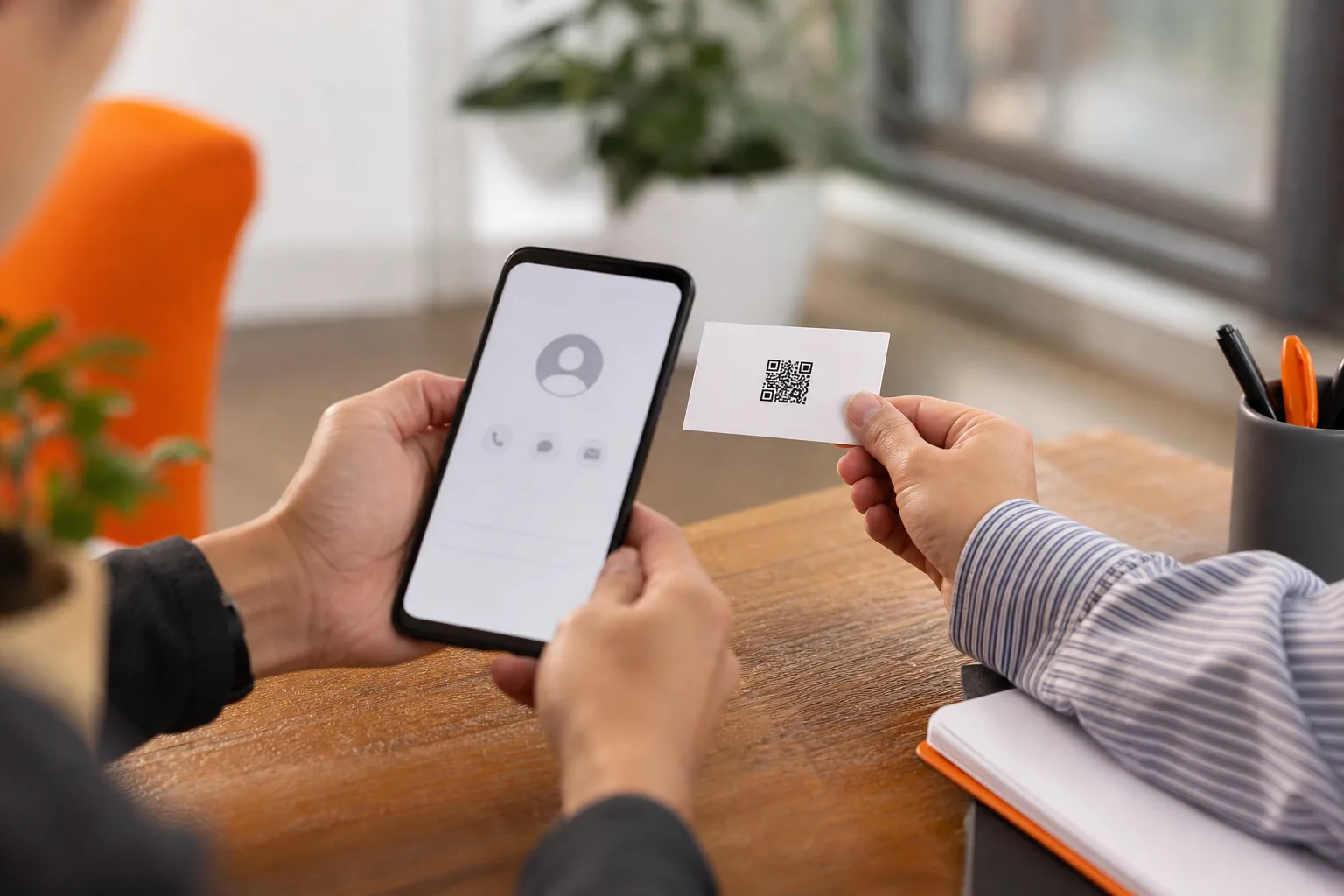
Pro Tip: Scan the final printed sample, not only the version shown on your screen.
A successful scan is only part of the test. Make sure the preview shows the details you meant to share, and that the recipient can choose to save them.
Step 5: Share It and Keep Your Contact Information Current
Once the test passes, place the code where people can scan it without asking what it does. Add it to a business card, event badge, email signature, or presentation slide. A short prompt such as “Scan to save my contact” gives the reader a clear next action.
For email or social profiles, use a code image that stays sharp at its display size. For print, use a vector file when available. Keep enough blank space around it, and check the final layout after the code is placed. Resizing or cropping can affect whether it scans.
For a one-time event, a static vCard may be enough. If you change your job title, phone, or email after printing, you’ll need to make a new static code and replace the old image wherever it appears. Printed cards can’t update themselves.
A dynamic code can point to a profile you can edit later, if the service supports those changes. It may also show scan data, such as counts or location details, depending on the tool. Check what data is collected and how long your code remains active. A free plan may have limits or ads, so read its terms before printing a large batch.
For multiple staff cards, keep a source sheet with each person’s approved details and a clear file name for each code. If the generator supports bulk creation, test a small batch first. Then confirm each code matches the right person before sending files to a printer.
LetsConnect can suit teams or professionals who want more than a contact QR. Our digital business cards combine a scannable profile with NFC, which lets someone tap a compatible phone to share. The profile can be updated, so shared details stay current. We also provide free worldwide shipping on orders over $50.
If you’re deciding between fixed contact data and an editable profile, our guide to dynamic vCard QR code tools covers the trade-offs to check before you print.
Frequently asked questions
What information can a vCard QR code store?
A vCard QR code can store contact fields such as your name, phone, email, company, job title, address, and website. The fields available depend on the generator. Include only the details you want to share. If you need several social links, check whether the tool supports them or use one profile-page link.
Do free vCard QR codes expire?
A static vCard QR code usually doesn’t depend on a hosted page, so the code itself has no service-based expiry. It stops being useful if the image is damaged or the contact details become outdated. Dynamic codes depend on the service and plan, so check their terms for expiry and access limits.
Can I edit a vCard QR code after printing?
You can’t change the contact data inside a static QR code after it’s made. You’ll need to generate and share a replacement. A dynamic QR code may let you edit a linked profile without changing the printed pattern, but that depends on the generator and its plan.
Can I add social media links or a photo?
Some generators support extra social links or a profile photo, while basic vCard tools may not. Check the available fields before you start. If you add a logo or photo to the QR design, test the finished code carefully because covering part of the pattern can make scanning less reliable.
What file format should I use for printing?
Use SVG when the generator provides it, because a vector image can scale without becoming pixelated. PNG can work for digital sharing or a fixed print size when the image has enough resolution. Ask your printer about preferred file types and test a sample at the final size.
Conclusion
Choose a static code for stable contact details and a dynamic profile if you need later edits. Enter only the fields you want to share, then scan a printed sample before ordering a batch. If you want tap-to-share alongside QR access, explore a LetsConnect digital card.
More questions about vCard QR codes
Is a vCard QR code free?
Many generators make a basic vCard QR code for free, but free can mean ads, limits or fewer design options. Check what the free version includes before you print.
What is the difference between a static and a dynamic QR code?
A static code keeps the contact data inside the code itself, so a change means making and sharing a new code. A dynamic code points to an online profile that may be editable later, depending on the service and plan.
Do vCard QR codes expire?
A static vCard QR code does not depend on a hosted page, so it has no service-based expiry, but it stops being useful once your details go out of date. Dynamic codes depend on the service and plan, so check their terms.
Can I edit my details after printing the QR code?
Not with a static code: you have to generate a new code and reprint. A dynamic code may let you edit the linked profile without changing the printed pattern. A Lets Connect digital card can be edited at any time without reprinting.
How do I test a QR code before printing?
Scan it with the phone camera at the size and distance people will use, on both an iPhone and an Android phone if you can, and check that every field saves correctly. For printed cards, print one sample at the final size and scan that before ordering a batch.
Skip the reprint
A static QR code has to be reprinted when your details change; a digital card keeps the same code and updates the details behind it.
Get your free digital business cardWhy Lets Connect is the best digital business card
- Free to start: a digital card with your own link and QR code, no card details needed.
- Pay once: no monthly fee for your card or your lifetime plan.
- The follow-up is built in: lead capture, a CRM, a card scanner, bookings, forms and review links in one dashboard.
- No app on either side: it opens in the browser on iPhone and Android.