
How to Create a Digital Business Card: Free, Step by Step, on iPhone or Android (2026)
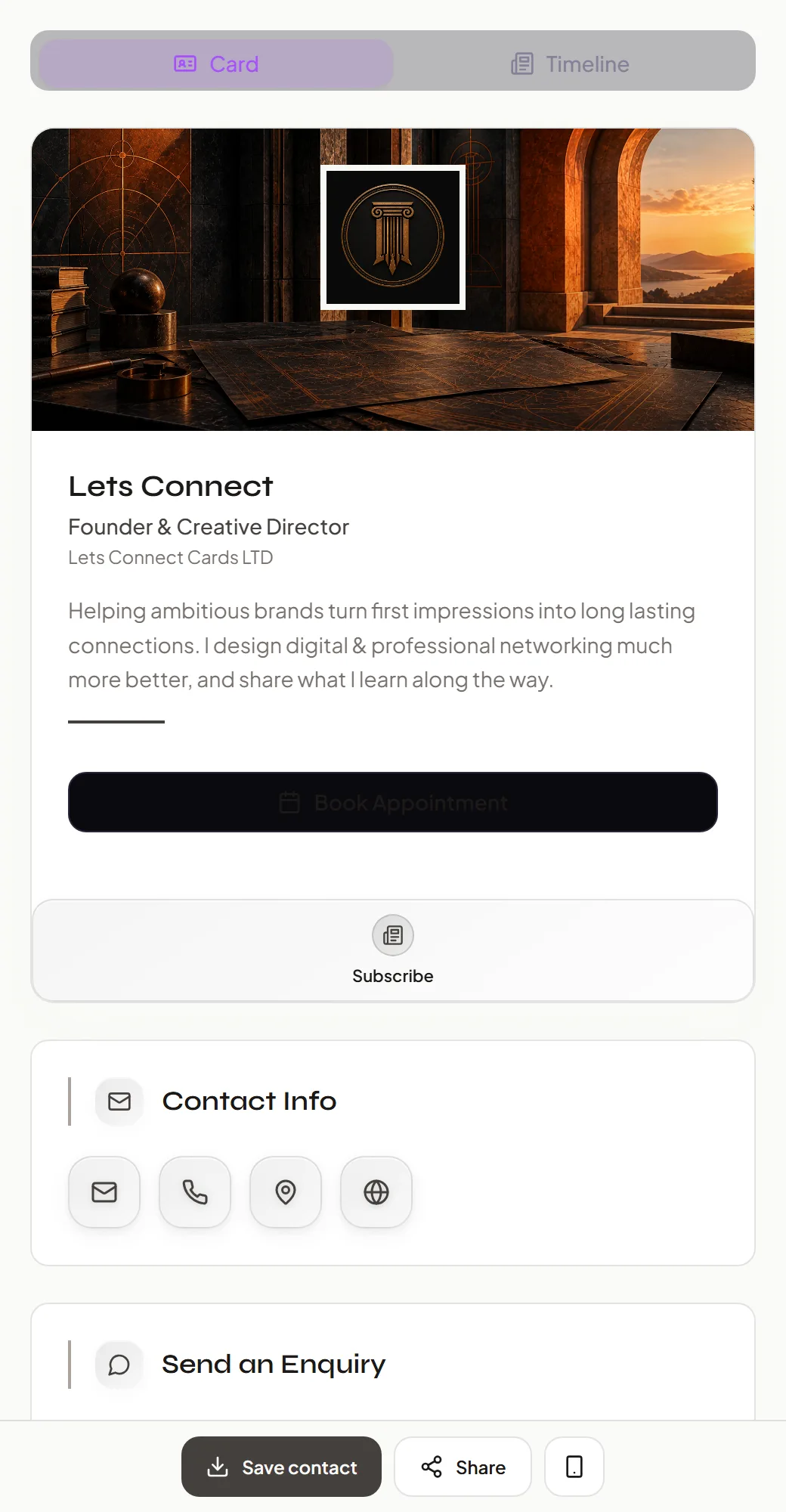
To create a digital business card, sign up with a provider, add your contact details, choose a design, and share the link or QR code it gives you. With Lets Connect this is free, takes a few minutes, and works in the browser on iPhone, Android or a computer. There is no app to install.
Below is the whole process, what to put on the card, how to share it, and what to add when you are ready for more than a contact page.
What you need before you start
- A phone or a computer with a browser.
- Your details: name, job title, company, phone, email, website.
- A photo or logo. A clear head-and-shoulders photo works best for a person; a logo for a business.
- Links to the profiles you want people to find: LinkedIn, Instagram, WhatsApp, your booking page.
You do not need a physical card, a payment card or an app.
Step 1: Create your free account
Go to letsconnect.digital/register and sign up. The free plan gives you a digital business card with your own link and a QR code.
Step 2: Add your details
Fill in your name, role and company first, then your contact methods. Add only the ways you want to be contacted. If you do not want calls, leave the phone number off or show email only.
Write one or two sentences about what you do and who you help. This is the line people read to remember you a week later, so say it the way you would say it out loud.
Step 3: Choose a template and your colours
Pick a layout that suits your work. A tradesperson may want the gallery near the top; a consultant may lead with a booking button. Lets Connect has 39 designer templates, and sections can be reordered or hidden.
Use your brand colours and the same photo or logo you use elsewhere, so people recognise you.
Step 4: Publish and open it on your own phone
Publish the card, then open your link on your phone as a stranger would. Check three things:
- Does the top of the page say who you are and what you do without scrolling?
- Does "Save contact" put the right name, number and company in your address book?
- Do the buttons you care about (call, WhatsApp, book) work?
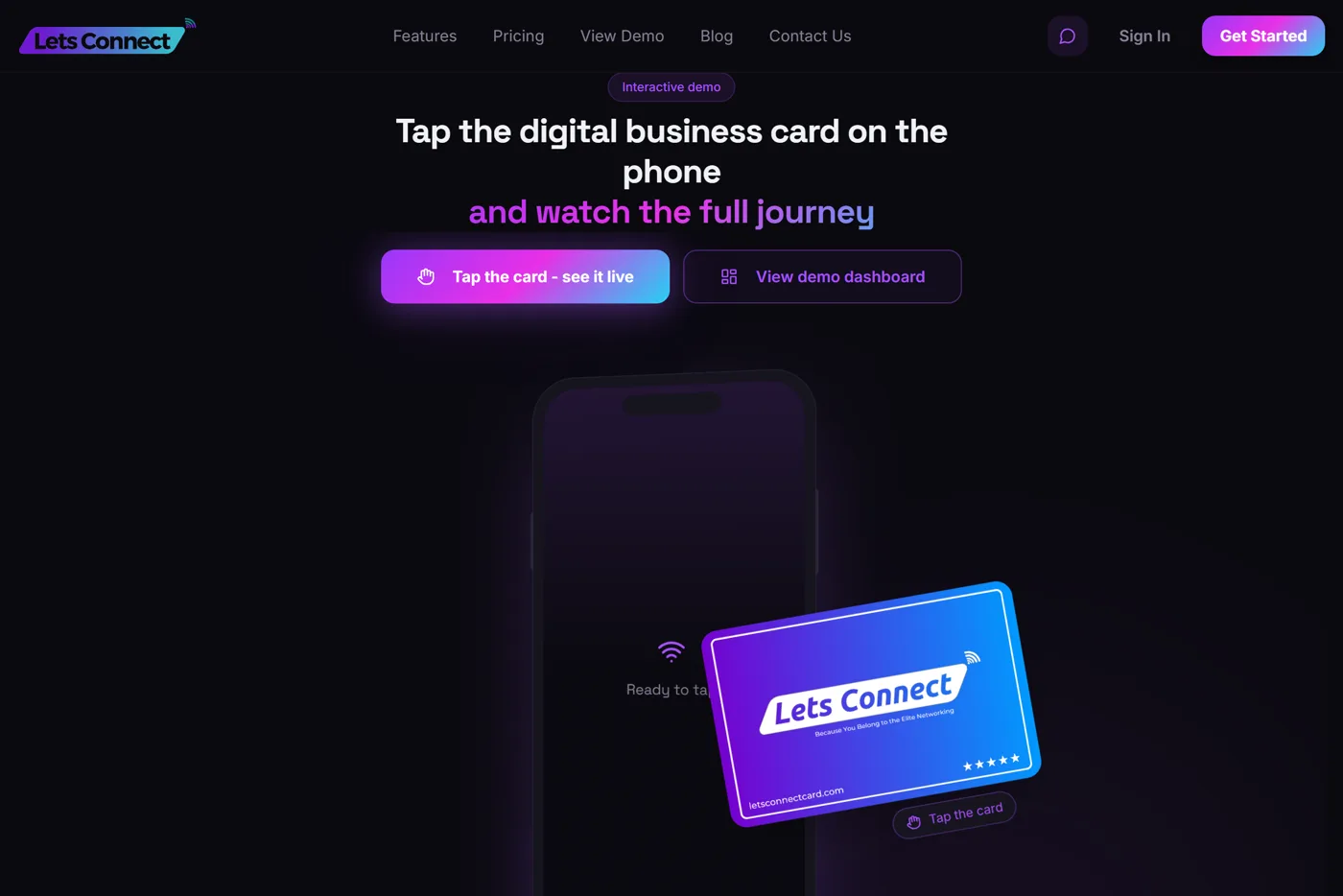
Before you build your own, you can tap through the interactive demo to see what a visitor sees and what you see in the dashboard.
Step 5: Share it
- Link: paste it into WhatsApp, text and email. Add it to your email signature and social bios.
- QR code: show it on your phone, or print it on a badge, flyer or slide.
- Wallet: save your card to Apple Wallet or Google Wallet so it is one swipe away.
- Home screen: install your profile to your phone's home screen for quick access.
- NFC card: optional. Tap a physical card on someone's phone to open your profile.
How to create a digital business card on iPhone
Open Safari, go to letsconnect.digital/register and follow the five steps above. Nothing is installed from the App Store. When you are done, add your card to Apple Wallet, or use Share and "Add to Home Screen" to keep it on your home screen.
To share from an iPhone, show the QR code or send the link. If you have an NFC card, the other person holds their iPhone near it; iPhones from the XS onward read NFC cards without any app.
How to create a digital business card on Android
Open Chrome, go to letsconnect.digital/register and follow the same five steps. Add the card to Google Wallet, or use the browser menu and "Add to Home screen".
Most Android phones read NFC cards with NFC switched on in Settings. If a tap does nothing, check that NFC is on; the QR code works either way.
What to put on a digital business card
Always: name, role, company, one photo or logo, and your preferred contact method.
Usually: website, LinkedIn, a one-line description of what you do.
If it fits your work:
- a booking button, if people need time with you
- a gallery, if your work is visual
- products or services with prices, if you sell them
- documents, such as a brochure, price list or certificate
- testimonials and review links, if trust decides the sale
- an enquiry form, so people can send a brief on the spot
Leave out anything you would not hand to a stranger. You control which contact methods appear.
When to add more than a contact page
A free card shares your details. The paid plans are for what happens next, and they are a one-off payment, not a subscription.
| You want to | Add |
|---|---|
| Look fully on brand, with templates, gallery, products and analytics | A lifetime plan, from £49 once |
| Capture each visitor's name, email and phone | Lead capture |
| Keep every contact in a pipeline with notes and tasks | The built-in CRM |
| Turn paper cards you are handed into contacts | The card scanner |
| Let people book time with you | Bookings |
| Ask happy customers for reviews | Review links |
All the business tools together are £99 as a single payment. Plans and what each includes are on the pricing page, and every tool is described on the features page.
Common mistakes
- Too many links. Five that matter beat fifteen that do not.
- No description. A name and a number do not remind anyone why they should call.
- Never testing "Save contact". Check it on your own phone before an event.
- Forgetting the QR code. Not every phone you meet will have NFC switched on.
- Leaving lead capture off at events. It is the difference between a busy day and a list you can follow up.
Frequently asked questions
Sign up at letsconnect.digital/register, add your details and share the link or QR code. The free plan needs no payment details.
No. You build and share it in your phone's browser. The person you meet needs no app either.
A few minutes for a basic card. Adding a gallery, services and a booking calendar takes longer, and you can do it later.
Yes. A QR code is generated for every Lets Connect profile.
Yes. Multi-Profile lets one account hold separate cards for separate roles or businesses.
Yes. Team plans give every member a card with company branding and a shared lead inbox. See pricing.
Edit the profile once. Every link, QR code and NFC card you have shared shows the new details straight away.
Ready to make yours? Create your free digital business card, or read what a digital business card is and how it works first.
Why Lets Connect is the best digital business card
- Free to start: a digital card with your own link and QR code, no card details needed.
- Pay once: no monthly fee for your card or your lifetime plan.
- The follow-up is built in: lead capture, a CRM, a card scanner, bookings, forms and review links in one dashboard.
- No app on either side: it opens in the browser on iPhone and Android.