
How to Enable NFC on Android
How to enable NFC on Android with clear steps for Samsung, Pixel, Motorola, Honor, and other phones, plus fixes when NFC does not work.
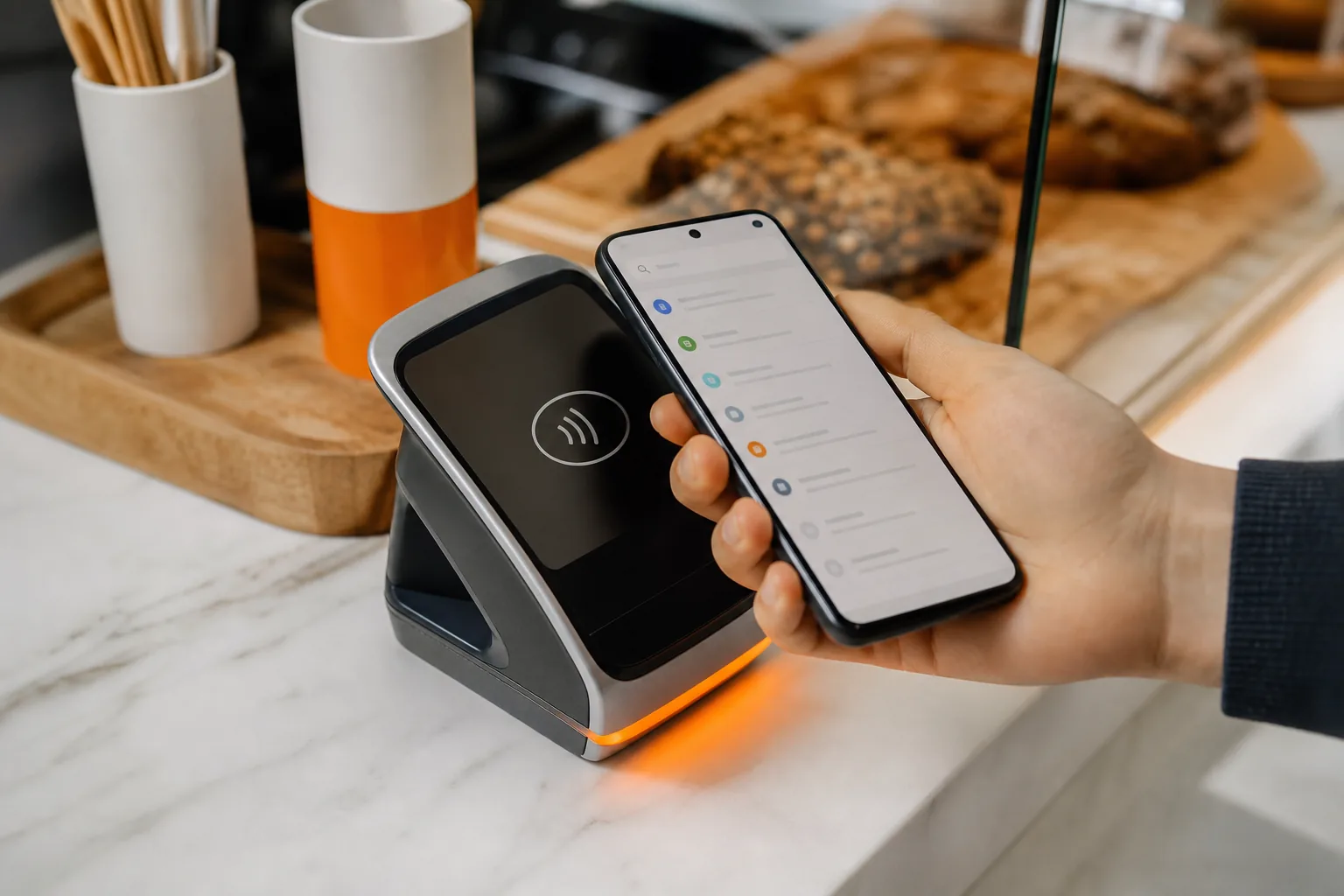
Your phone may support NFC, yet the switch can hide in a different menu. That’s why a path that works on one Android phone may fail on another. Follow these steps to find NFC, turn it on, test it, and fix common problems.
Once NFC works, you can tap to pay, read tags, share content, or use tap-to-share tools such as LetsConnect. No app required.
Step 1: Check for NFC support
Before you troubleshoot, confirm that your phone has NFC hardware. NFC means near-field communication. It lets your phone exchange small amounts of data with a nearby reader or tag.
Open Settings and use the search bar. Type NFC. If an NFC setting appears, your phone likely supports it. You can also check the phone’s online manual or model specifications. Some Motorola models do not include NFC, so the setting won’t appear on those devices.
Android does not use one universal menu. The label may say NFC, NFC and contactless payments, or Connection preferences. Don’t assume the feature is missing until you search Settings.
Step 2: Open the NFC settings
The usual route for stock Android is Settings, Connected devices, Connection preferences, then NFC. A Motorola support guide lists that exact path, but it also notes that NFC isn’t available on every model.
Other phones place NFC under Connections. You may see a menu named NFC and contactless payments. Honor devices can place it under Connections or Wireless & Networks, followed by NFC. Menu names can change with the phone maker and Android version.
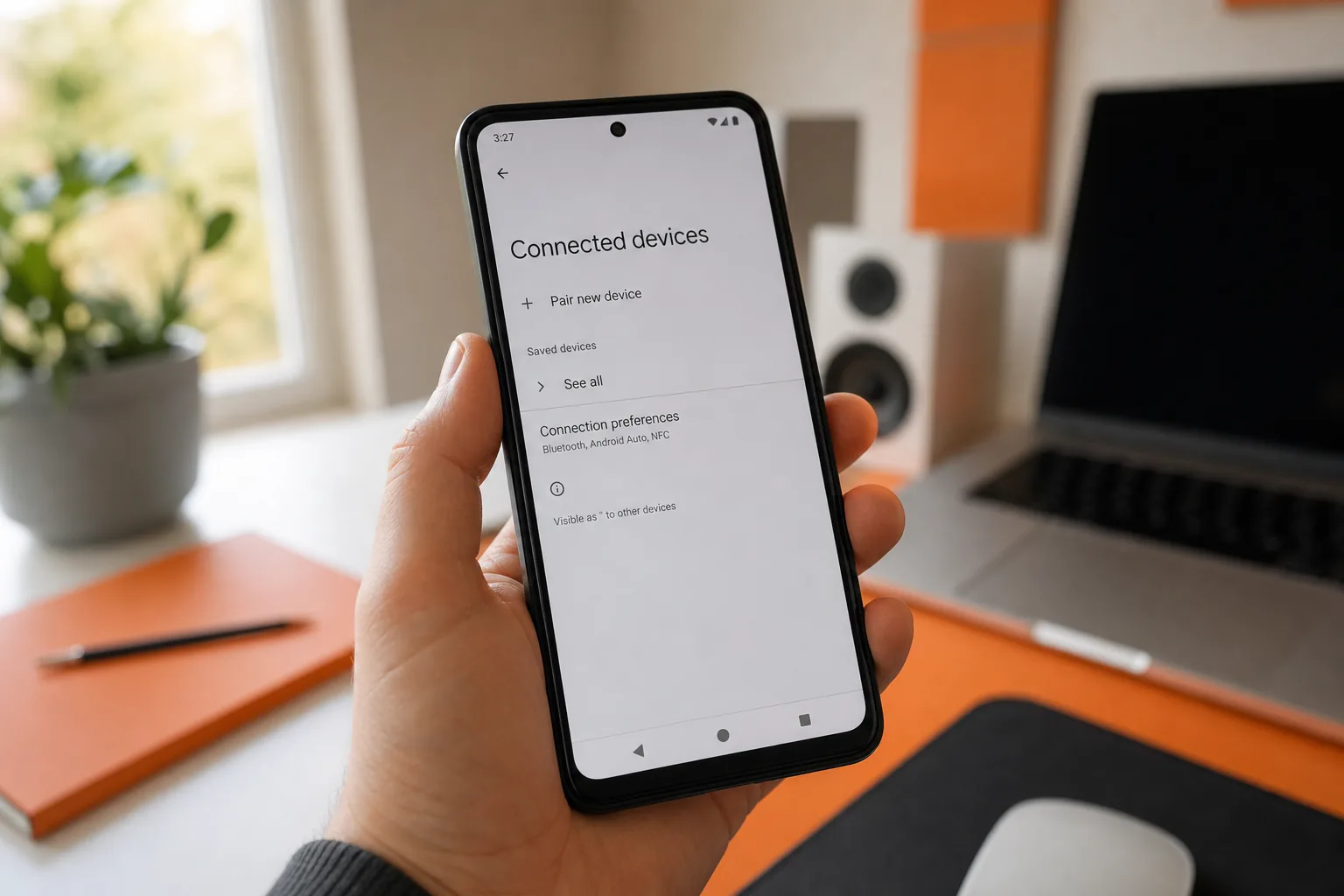
If you can’t find the menu, return to the main Settings screen. Tap the search field and type NFC again. Open the result that controls the NFC radio, not a debug log or developer tool.
Step 3: Turn on the NFC toggle
Once you reach the NFC screen, switch the toggle on. It usually sits on the right side of the NFC row. Some phones show a tile button instead.
Tap the NFC row if you want to view more settings. You may see options for contactless payments, default wallet apps, or non-payment NFC services. The exact choices depend on your phone and installed apps.
Google’s Wallet instructions also tell users to search Settings for NFC and turn on the setting before setting up tap to pay. The official Google Wallet instructions warn that steps may differ by device.
Key takeaway: The NFC switch must be on before your phone can read a tag or communicate with a contactless reader.
Step 4: Set up contactless payments
Turning on NFC does not finish payment setup. If you want to pay with your phone, open the NFC settings and look for the default wallet or contactless payment app.
Choose the wallet you want to use instead of leaving the default option set to none. Then open that wallet and finish its own setup. Your bank may ask you to verify a card before it can work at a payment terminal.
Test the setup at a supported reader. Hold the back of your phone near the reader for a moment. The NFC antenna may sit near the top, center, or lower part of the phone, so move the phone slowly if the first position fails.
Step 5: Add NFC to Quick Settings
A Quick Settings tile gives you faster control after you learn how to enable NFC on Android. It can help when you want NFC on only during a payment or tag scan.
Swipe down twice from the top of the screen. Look for an NFC tile. If it isn’t visible, tap the pencil icon or Edit button. Find NFC in the available buttons, then drag it into the active tile area. Tap Done.
Next time, swipe down twice and tap NFC. The tile should show whether the feature is on. Tile controls differ by phone maker, and some phones don’t provide an NFC tile at all. In that case, use the Settings search bar.
Step 6: Test NFC with a tag or reader
Now test the feature with a known NFC tag or contactless reader. Remove thick cases, wallets, or metal plates first. They can make it harder for the phone to detect a nearby tag.
Keep the screen awake. Place the back of the phone near the tag, then hold it still for a second. Try the upper back first. If nothing happens, move the phone a few centimeters and test again.
NFC can read tags that open a link or trigger an action. It can also support mobile payments. Some Android sharing features use nearby connections, while NFC helps begin the handoff. For business use, a LetsConnect NFC business card can share contact details, social profiles, or a portfolio with one tap. You can also explore NFC business card tips and digital networking guides for ideas on using contactless technology in your workflow.
That tap-to-share flow is useful at a meeting. The other person can open your details without installing an app. You can review the LetsConnect NFC business cards with QR, CRM, and lead capture if you want NFC to support your networking workflow.
Step 7: Fix NFC that is on but not working
If NFC is on but fails to respond, reset the service before changing deeper settings. Turn NFC off, wait about ten seconds, then turn it on again. Restart the phone and test the same tag or reader.
For payment problems, check the default wallet. Make sure a supported wallet is selected. Review non-payment NFC services too. If one service conflicts with the task you’re trying to perform, disable it temporarily and test again.
You can also clear the NFC service cache on some Android phones:
- Open Settings, then Apps.
- Show system apps if that option exists.
- Search for NFC or the NFC card reader service.
- Open Storage and clear the cache.
- Restart the phone and test NFC again.
Menu names vary, and some phones won’t expose this service. Don’t clear app data unless you understand what it removes. If the NFC option vanished after an update, check the phone maker’s support page before changing system settings.
Step 8: Disable NFC when you don’t need it
To turn NFC off, return to the same NFC screen and switch the toggle off. You can also use the Quick Settings tile if your phone provides one.
Leaving NFC on is convenient, but turning it off when you don’t use it gives you more control over nearby interactions. This matters most when you carry your phone close to unknown tags or readers. Keep your screen lock active as well, especially if you use contactless payments.
If NFC turns off after every restart, check for battery or device-management settings that restrict background services. If it stays off and the switch is greyed out, the phone may lack NFC hardware or have a system restriction. Manufacturer support is the right next step.
Frequently asked questions
How do I enable NFC on Android?
Open Settings and search for NFC, then turn on the NFC switch. On many phones, the path is Settings, Connected devices, Connection preferences, and NFC. Other phones place it under Connections or NFC and contactless payments. If the search returns no NFC setting, check whether your phone model includes NFC hardware.
Why is NFC not showing in my settings?
NFC may not show because your phone lacks NFC hardware. Motorola notes that the option is absent on models without NFC. Search Settings for NFC first, then check your phone’s manual or model specifications. If the feature should exist but disappeared, restart the phone and check for a system update.
Where do I tap my Android phone for NFC?
Start with the upper back of the phone, then move it slowly across the reader or tag. NFC antennas sit in different places, so there is no single spot that works on every Android phone. Remove a thick case or metal wallet before testing. Hold the phone still once it reaches the correct position.
Why is NFC on but not working?
NFC can fail because the default wallet is unset, the phone is not close enough, or the case blocks the signal. Turn NFC off for ten seconds, turn it on again, and restart the phone. Then check the default wallet and test a different tag or reader. Clear the NFC service cache only if your phone exposes that option.
Can I use NFC without making payments?
Yes, NFC can read tags and support non-payment actions. A tag may open a link or trigger a preset task. NFC can also help start nearby sharing on some Android phones. You don’t need a wallet for these uses. Keep NFC enabled, then place the back of your phone near the tag.
Should I turn NFC off after using it?
You can turn NFC off when you don’t need it. Use the NFC screen in Settings or tap the NFC tile in Quick Settings. Leaving it on is convenient for contactless payments and tags, while turning it off limits unwanted nearby interactions. Your choice depends on how often you use NFC.
Conclusion
Start with the Settings search bar, then follow the menu path your phone shows. Turn NFC on, set a wallet if needed, and test the back of the phone with a reader or tag. For a business-ready tap-to-share setup, LetsConnect is a simple next step, with no app required and free worldwide shipping noted on its site.
Why Lets Connect is the best digital business card
- Free to start: a digital card with your own link and QR code, no card details needed.
- Pay once: no monthly fee for your card or your lifetime plan.
- The follow-up is built in: lead capture, a CRM, a card scanner, bookings, forms and review links in one dashboard.
- No app on either side: it opens in the browser on iPhone and Android.
Related articles
- Best Digital Business Cards in the UK (2026): 8 Compared on Price and Features
- UC Awards 2026: Why Lets Connect Was Named a Rising Star Finalist
- Our Aim: To Lead the Business Card Category Worldwide by 2028
- Going to The Business Show London? Don't Bring Business Cards
- Best NFC Tools for iPhone: 9 Cards and Apps
- Best Business Card Apps for Professionals