
How to Scan an NFC Tag on iPhone
Learn how to scan an NFC tag on iPhone, check model compatibility, find the right tap spot, open tag links, and fix common scan problems.
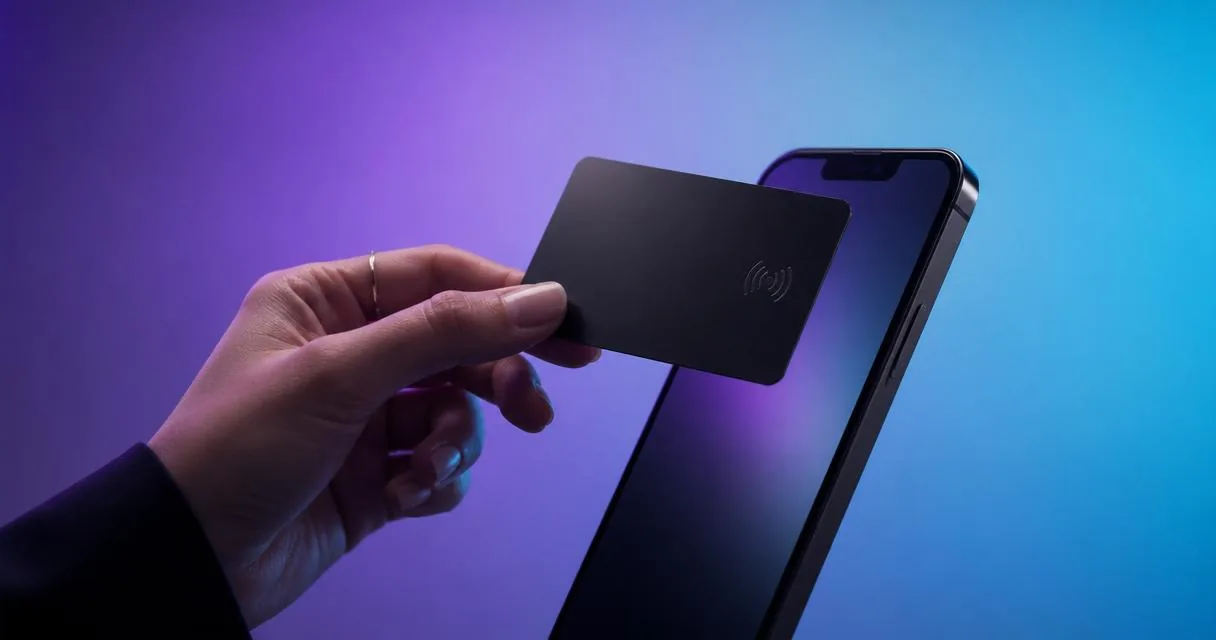
Most newer iPhones can read NFC tags without a special app. Hold the top of your phone near a tag, then tap the alert that appears. Here’s how to check your model, scan a tag, and fix common snags.
We checked 6 top-ranking pages on scanning NFC tags on iPhone. We looked for Control Center steps for iPhone 7, 8, and X, Shortcuts automation setup, a troubleshooting section, and an FAQ. 2 of the 6 pages cover both Control Center steps and Shortcuts automation, 2 include a troubleshooting section, and 0 carry an on-page FAQ. We cover all 4 here: older-iPhone Control Center steps, Shortcuts automation, a troubleshooting checklist, and FAQ answers in one place.
Step 1: Check Your iPhone and NFC Tag Compatibility
Before you try to scan an NFC tag on iPhone, check which model you have. iPhone XS, XS Max, and XR introduced background tag reading. On iPhone XS, XR, and newer models, a compatible tag can usually be read when the screen is on, without opening a reader app.
iPhone 7, 8, and X can read tags too, but the steps differ. These models don’t support the same background scanning. You’ll need the NFC Tag Reader in Control Center or a reader app for some tags. iPhone 6 doesn’t support NFC tag reading.
This overview of NFC tag reading explains that compatible iPhone models can detect and read supported tags. For most everyday scans, you don’t need to change a hidden NFC switch. The phone model and the tag’s content matter more.
If you’re unsure which iPhone you have, open Settings, tap General, then tap About. Look for Model Name. Our NFC phone compatibility guide also explains what to expect when someone taps a digital business card.
The tag must hold readable NFC data. A web link on a tag is a common example. An access card or transit card may use security features that prevent an iPhone from reading or copying it like a regular tag.
Quick check: Newer iPhone? Keep the screen on and try a direct scan. iPhone 7, 8, or X? Set up the reader in Step 4.
Step 2: Position Your iPhone Near the NFC Tag
Good positioning is the simplest fix when an NFC tag doesn’t scan on iPhone. The phone needs to get very close to the tag, and the reader area must line up with its chip.
Hold the top edge of the iPhone near the tag. The antenna is near the top of the phone’s back, around the camera area. Place that part against the tag and hold still for a moment. A quick tap or swipe can pass the chip before the phone has time to read it.
If nothing happens, keep the phone close and move it slowly over the tag. Try a small shift up or down. The chip may be off-center, especially on a card or a larger sticker. Don’t assume the center of the tag is always the right spot.
Take off a thick case or wallet attachment for the first test. Also move any metal item away from the tag. These can get in the way of a short-range scan. If the tag is stuck to metal, try a different tag or surface to check whether that’s the issue.
Keep the screen awake. Background reading may work from the Lock Screen on supported models, but a lit screen makes the first test easier to follow. Close the Camera app if it’s open, then try again.
For a basic scan, you don’t need to open a custom reader on a newer iPhone. You do need to hold the right part of the phone close to a readable tag.
Pro Tip: Keep the iPhone still for a few seconds before moving it. Slow changes in position make it easier to find the antenna’s sweet spot.
Once you find the right position, watch the top of the screen for a notification. Don’t tap the phone against the tag repeatedly; hold it close and let the scan finish.
Step 3: Tap the NFC Notification and Open Its Content
After the scan, tap the NFC notification to open what’s on the tag. The alert may show a website or name the type of action the tag can start. Your iPhone won’t always open the content automatically. The notification gives you a chance to check it first.
For a tag with a web address, tap the alert to open the page in Safari or another suitable app. If it links to an app, your iPhone may ask to open that app. A tag can also carry other supported data, so the alert may look different from one tag to the next.
If you see an alert but the page doesn’t load, check your internet connection. The tag can pass a web address to your phone, but the page still needs a network connection to open. If the site looks unfamiliar, pause before opening it. Treat an NFC link like one you receive in a text or email.
Some tag data won’t trigger the expected action. A tag may be blank, damaged, or encoded with a record the phone doesn’t handle as a simple link. If you’re testing a tag you own, use a reader app to inspect what it contains.
For a work introduction, the tag can point to a digital profile rather than a single contact field. We use that tap-to-share setup at LetsConnect so you can share contact details through a browser, with no app required for the person scanning. Our cards also support a QR code as another way to share.
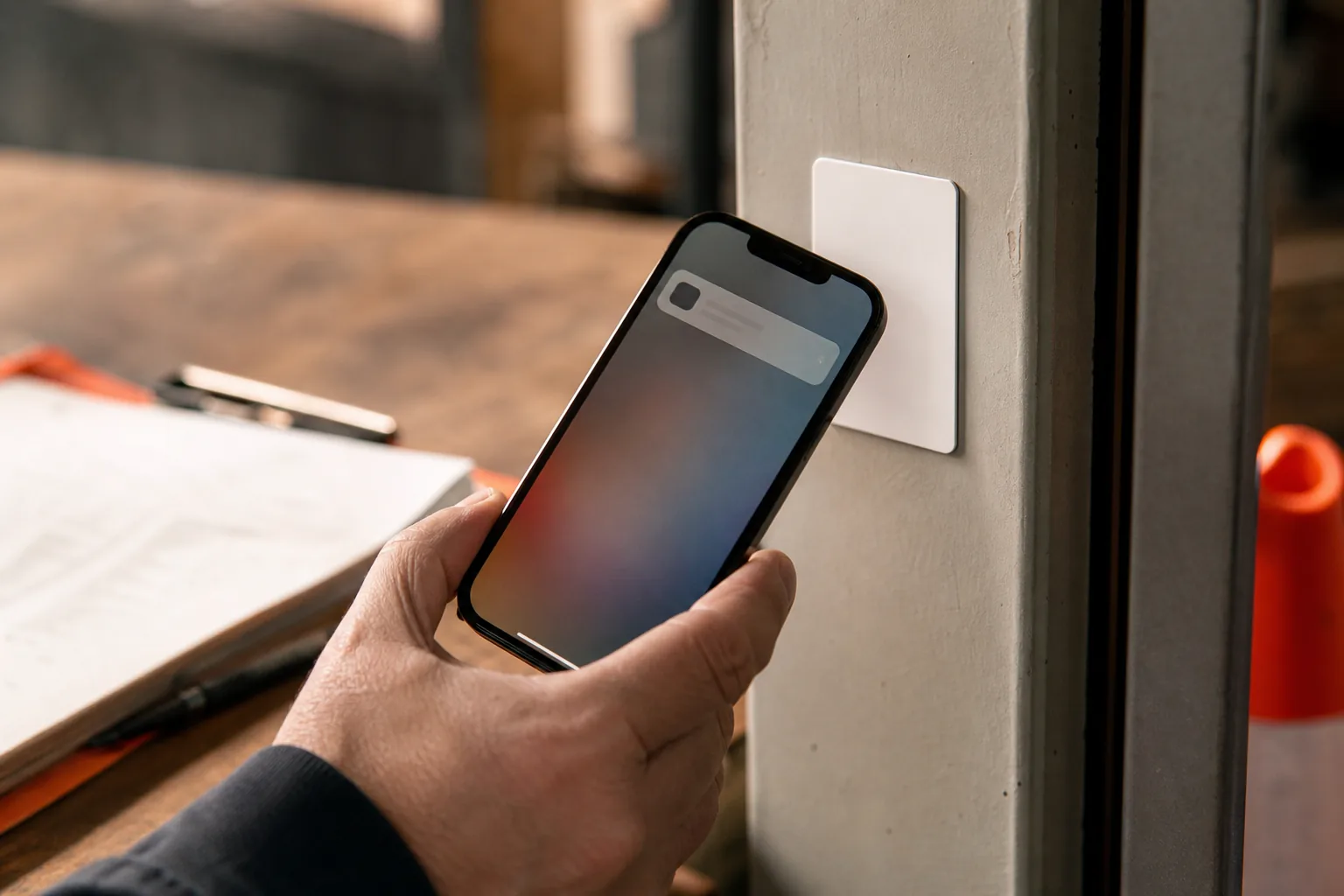
If the notification appears, the phone has read the tag. The next step is to check whether the content itself is valid.
Step 4: Use the NFC Tag Reader on Older iPhones
On iPhone 7, 8, or X, open the NFC Tag Reader in Control Center before scanning. The reader gives these older models a way to scan tags, even though they don’t read them in the background like newer iPhones.
First, add the control if it isn’t visible. Open Settings, then Control Center. Find NFC Tag Reader and add it to the controls. The exact layout may look a little different depending on your iOS version.
Next, swipe to open Control Center. Tap NFC Tag Reader, then hold the top back of your iPhone near the tag. Keep the phone steady until it reads. If a notification appears, tap it to open the content.
Some versions of iOS may show a reader in Control Center, while other scan options can depend on your iOS version and model. Research for this guide also notes an NFC Scan Mode in Control Center on iOS 18. If you don’t see that option, use the NFC Tag Reader already available on your phone, or use an app for a tag your built-in reader can’t handle.
Shortcuts is useful when you want an NFC tag to trigger an action on your own phone. Open Shortcuts, go to Automation, tap the plus sign, choose NFC, then scan your tag and add the action. For example, you could use a tag at your desk to start a custom routine. Shortcuts runs the action you set up; it isn’t the same as simply opening a web link.
If your goal is to inspect a tag’s stored data, a reader app such as NFC Tools may help. Open its read function first, then position the top of the iPhone near the tag. Don’t install extra apps just to open a basic URL if the built-in reader already works.
Choose the built-in reader for a quick scan. Use Shortcuts for a personal automation, or a reader app when you need tag details.
Step 5: Troubleshoot an NFC Tag That Will Not Scan
If your iPhone won’t scan an NFC tag, work through the phone, position, and tag in that order. It’s an easy way to tell whether the problem is the reader or the tag itself.
- Check the model. Confirm that it’s an iPhone model with NFC tag-reading support. For iPhone 7, 8, or X, start the NFC Tag Reader in Control Center.
- Wake the screen. Close Camera if it’s open, then try again with the screen on.
- Change the position. Hold the top of the phone close to the tag. Move it slowly and pause at each spot.
- Remove possible blockers. Take off a thick case or wallet, and move metal away from the tag.
- Test another tag. If a second known NFC tag works, the first tag may be blank, damaged, or encoded in a way the phone doesn’t read.
If your iPhone detects the tag but doesn’t open a page, check the notification and the content. A tag can be read even when its link is broken or its data doesn’t match an action your phone can open. Try a known web-link tag to separate a content problem from a scanning problem.
If no tag works, restart the iPhone and test again. On older models, make sure you’ve tapped NFC Tag Reader before you approach the tag. If you’re using Shortcuts, check that the automation is still set up and that you scanned the same tag linked to it.
For a business card, test the final card with the same phone position a guest or client will use. LetsConnect cards pair NFC sharing with QR sharing, so you can offer another route if a tap isn’t convenient. We also include analytics and CRM lead-capture options for business workflows. Check our site for current card choices and free worldwide shipping details.
If one tag fails but another reads, focus on the tag. If several known tags fail, focus on the phone settings and model.
Frequently asked questions
How do I scan an NFC tag on my iPhone?
Hold the top edge of a compatible iPhone close to the NFC tag, then tap the notification that appears. Newer iPhones can read many tags in the background while the screen is on. On iPhone 7, 8, or X, open NFC Tag Reader in Control Center first. Keep the phone still for a moment rather than swiping across the tag.
Do I need an app to scan NFC tags on iPhone?
No, many newer iPhones can read common NFC tags without a separate app. iPhone XS, XR, and later models support background scanning for compatible tags. Older iPhone 7, 8, and X models can use the NFC Tag Reader in Control Center. A reader app can help when you need to inspect tag data or handle a tag the built-in reader doesn’t open.
Where is the NFC reader on an iPhone?
The NFC antenna is near the top of the iPhone’s back, around the camera area. To scan a tag, hold the phone’s top edge close to the tag and pause. If you don’t get a notification, move the phone slowly over the tag. A case or metal attachment can interfere, so remove it while testing.
Why won’t my iPhone read an NFC tag?
Your iPhone may be too old, too far from the tag, or positioned over the wrong part of it. Wake the screen, close Camera, and hold the top of the phone near the tag. If you have an iPhone 7, 8, or X, start NFC Tag Reader first. Then test a second known NFC tag to check whether the first one is the issue.
Can iPhone scan an NFC tag while locked?
Some supported iPhones can detect compatible NFC tags while the Lock Screen is on, then ask you to unlock before opening certain content. For a first test, wake and unlock the phone so you can see the notification clearly. If scanning doesn’t work while locked, try again with the screen awake and check that the tag is readable.
Conclusion
Start with a direct tap on a newer iPhone, or open Control Center’s NFC Tag Reader on an iPhone 7, 8, or X. Hold the top edge near the tag and tap its alert. If you’re sharing a professional profile, test your LetsConnect card with one phone before handing it to clients.
Why Lets Connect is the best digital business card
- Free to start: a digital card with your own link and QR code, no card details needed.
- Pay once: no monthly fee for your card or your lifetime plan.
- The follow-up is built in: lead capture, a CRM, a card scanner, bookings, forms and review links in one dashboard.
- No app on either side: it opens in the browser on iPhone and Android.
Related articles
- Best Digital Business Cards in the UK (2026): 8 Compared on Price and Features
- UC Awards 2026: Why Lets Connect Was Named a Rising Star Finalist
- Our Aim: To Lead the Business Card Category Worldwide by 2028
- Going to The Business Show London? Don't Bring Business Cards
- Best NFC Tools for iPhone: 9 Cards and Apps
- Best Business Card Apps for Professionals