
How to Test NFC on iPhone: Quick Guide
Last updated:
Learn how to test NFC on iPhone with a tag, NFC Tools, or NFC.cool, plus quick fixes when your iPhone does not detect the chip.
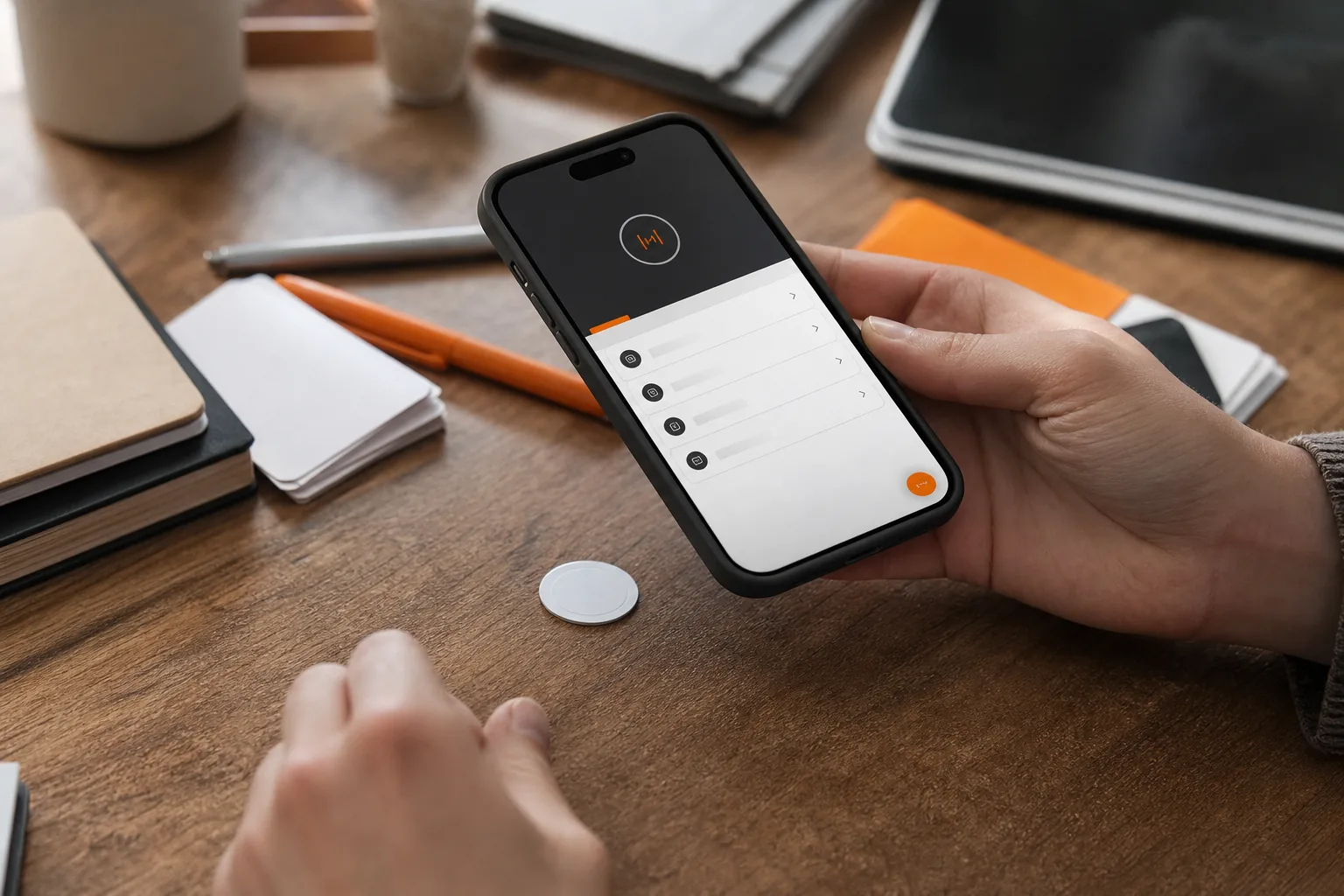
Your iPhone can read many NFC tags, but the test only works when the phone and tag match. The main catch is compatibility: NFC Tools lists support from iPhone 7 onward. To test NFC, use a compatible iPhone, an NFC tag, and an app with Read or Write tools.
Follow these steps to check a tag, write a test link, read a passport chip, and fix common scan failures. Once your phone works, you can use the same tap-to-share idea with this NFC phone compatibility guide.
We read the 32 most recent written App Store reviews of NFC Tools, the reader app used throughout this testing process. Ten of those 32 reviews, 31%, described a tag that would not scan, needed repeat tries, or failed to write. NFC.cool Tools, the passport and ID reader used for chip testing, holds 73,500 App Store ratings at 4.52 stars. Even at that scale, users still hit scan failures often enough that checking tag type and position first pays off.
Step 1: Check Your iPhone and NFC Tag
Before testing NFC on iPhone, confirm that you have the right phone and a real NFC tag. NFC Tools lists compatibility from iPhone 7, while newer iPhones can read tags without a visible NFC switch in Settings.
Check the model first. Open Settings, then choose General and About. Look for the Model Name. If the phone is older than iPhone 7, a tag test may fail because the device lacks the needed NFC support.
Next, get an NFC-enabled tag. A blank sticker, card, or plastic token can work, but it must contain an NFC chip. A normal RFID card may use a different frequency or standard. Your iPhone may ignore it even when the card works with another reader.
You don't need to turn NFC on in Control Center. Keep the phone awake and remove thick cases, metal wallets, or magnetic holders near the phone. These can make a short-range scan harder.
- Use an iPhone 7 or newer.
- Use an NFC-enabled tag.
- Keep the tag flat and close to the phone.
- Install NFC Tools or another NFC reader.
For a clean test, start with one blank tag. Don't test a payment card, building pass, or unknown access card first. Those cards may use security features that a general NFC app can't read.
Key Takeaway: A compatible iPhone and a known NFC tag remove the two biggest causes of failed tests.
Step 2: Test NFC by Scanning a Tag
To test NFC on iPhone, open NFC Tools and use its Read section. The app is built to show the tag's technical details instead of merely opening the content stored on it.
Install NFC Tools from the official NFC Tools App Store listing. Open the app, then tap Read. Hold the top edge of your iPhone close to the tag. Move the phone slowly across the tag if nothing happens at first.
Keep the phone still for a moment after it reaches the right spot. NFC works over a very short distance, so a quick swipe can miss the chip. You may need to try the top, back, or center of the tag, depending on the iPhone model and tag shape.
A successful read should show tag details. NFC Tools can display information such as:
- The tag maker and tag type.
- The NFC standard and available technology.
- The serial number or chip identifier.
- The tag size and used memory.
- Whether the tag can be written.
- The stored NDEF data, such as a URL or text record.
These details prove that the phone detected the chip. A web page opening by itself is useful, but it doesn't tell you much about the tag. The Read screen gives you a better diagnostic result.
If the app shows a serial number, tag type, or NDEF record, the phone's NFC reader is working. Save the result if you want to compare it with a later scan. NFC Tools also lets you save tag contents for later access.
Don't expect every chip to respond. iPhones can read NFC, but they don't read every RFID frequency. Some cards also block access or use formats that a general reader can't handle.
For a business test, scan the tag several times. Test it with the phone unlocked, then try the normal tap position that a customer will use. A tag that only works after careful positioning may need a better placement or a printed QR backup.
Step 3: Write a Test URL or Message to the Tag
Writing a test record shows whether the NFC tag can store data, not only whether your iPhone can read it. Use NFC Tools, open Write, and start with a short URL or plain text.
Open NFC Tools and choose Write. Select Add a record, then pick a data type such as URL or text. Enter a simple test value. A public web page is useful because you can confirm both the stored record and the action after scanning.
Review the record before writing it. Check the full web address, including the correct beginning such as https. Then tap Write or Next, depending on the screen shown by the app. Hold the iPhone near the tag until the app confirms that the write finished.
Don't move the phone during the write. A failed write can leave an incomplete record, especially when the phone loses contact with the tag. If the app reports that the tag is locked, you can't rewrite it through the normal write flow.
Now test the result in two ways:
- Use NFC Tools Read to confirm that the URL or message is stored.
- Leave the app and tap the iPhone on the tag to test the normal user experience.
These two tests answer different questions. The first checks the data. The second checks what a person sees after a tap.
Airplane Mode can also confuse this test. NFC Tools may still read or write a tag while Airplane Mode is on, but a URL needs an internet connection to open. Turn Airplane Mode off before judging a web-link test.
Wi-Fi records need extra care. A tag may hold the network details while iOS still doesn't join the network as expected. For a basic NFC test, use a URL first. It gives you a cleaner pass or fail result.
For networking, we use a web profile rather than relying on a raw contact record. LetsConnect NFC business cards use a tap-to-share profile that opens in a browser, so the recipient doesn't need an app. That setup also gives you a QR fallback when a phone can't read NFC.
One more limitation matters here. An NFC app may write contact data, but iOS may not turn that record into a new contact in the way you expect. A public profile URL is often the safer test record.
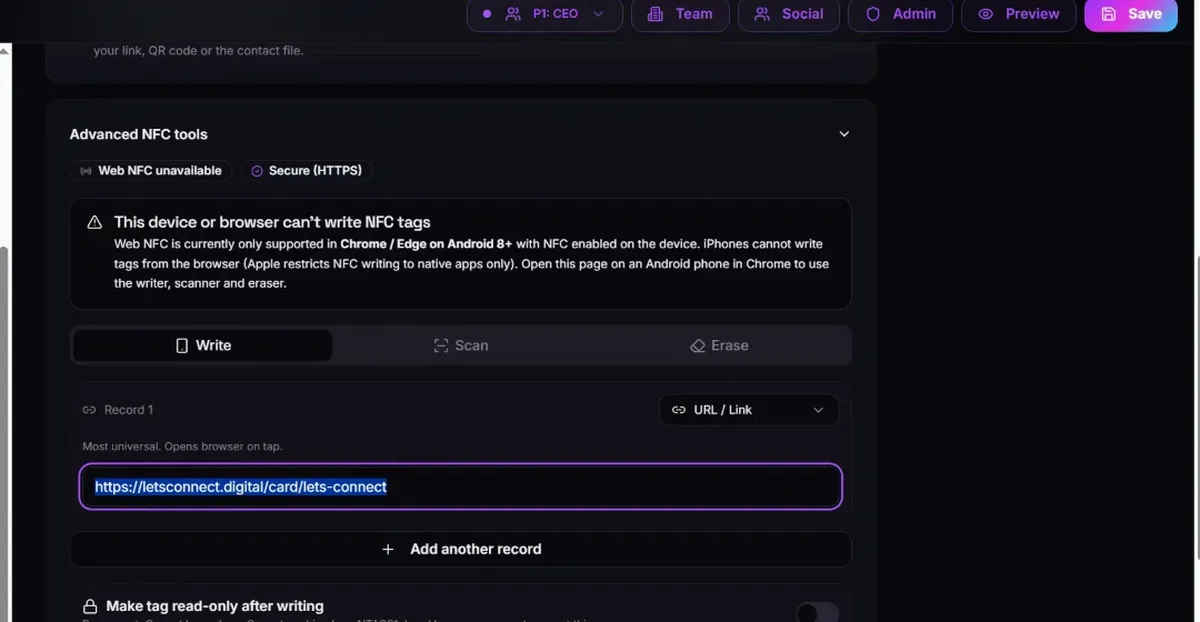
If you would rather skip writing your own tags, our NFC business cards arrive ready to open your profile with one tap, and our NFC Google review cards open your Google review page the same way.
Step 4: Test an NFC Chip in a Passport or ID
Testing NFC on iPhone with a passport or ID is different from scanning a blank tag. These documents can contain protected chip data, so use a reader made for passport or identity documents.
NFC.cool Tools includes a passport and ID reader. Its documented workflow supports an NFC-enabled passport, ID card, or residence permit. The expected result is stored document data and a photo shown inside the app.
Before you start, remove the document from a cover or wallet. Lay it flat on a table. Open the reader, follow its prompts, and place the top area of the iPhone over the document's chip location. Keep the phone still while it reads.
You may need information from the document before the chip can be read. Follow the app's instructions and enter only what the app asks for. Don't photograph or share passport details while testing.
| Test target | What you need | Pass signal | Common limit |
|---|---|---|---|
| Blank NFC tag | NFC-enabled tag | Tag type, serial number, or NDEF data appears | The tag may be locked or unsupported |
| Written URL | Writable NFC tag and test link | Read view shows the URL, then the link opens | Airplane Mode blocks the web action |
| Passport chip | NFC-enabled passport | Stored photo and document details appear | Position, cover, or access checks may stop the read |
| ID card chip | NFC-enabled ID card or permit | Supported identity data appears | Not every ID uses a readable NFC format |
NFC.cool Tools supports passport, ID card, and residence permit reading on iPhone and Android. It also covers specialist tags such as NTAG 424 DNA, which goes beyond a simple URL test.
Use a passport test only on your own document. A successful scan doesn't mean the phone can read every secure document. It means the app and document passed that particular read.
If your goal is a work identity check, record the result without storing sensitive images. A simple note that the chip read successfully is enough for most device tests.
Step 5: Troubleshoot When Your iPhone Does Not Detect NFC
When your iPhone doesn't detect NFC, start with the tag and phone position before blaming the app. Most failed tests come from an unsupported tag, a blocked chip, or a missed scan point.
Try this order:
- Confirm that the iPhone is iPhone 7 or newer.
- Remove the phone case and any wallet attachment.
- Open the reader app before placing the phone near the tag.
- Hold the top of the phone near the tag for several seconds.
- Move the phone slowly across the tag's surface.
- Try a second known NFC tag.
- Restart the iPhone and test again.
Don't search for an NFC toggle if your iPhone doesn't show one. Many iPhone models read tags without a separate Control Center button. The important test is whether the phone detects a known compatible tag.
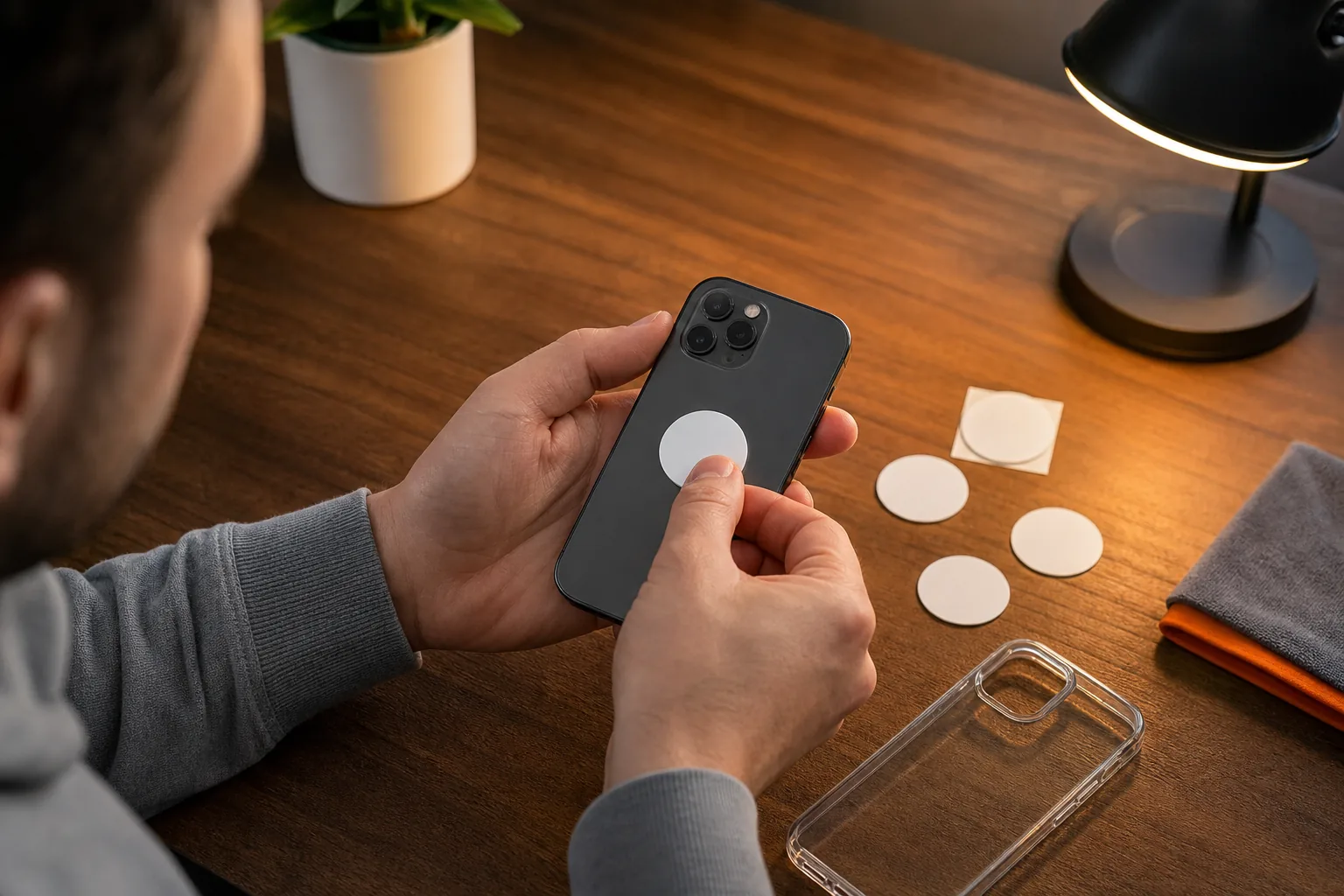
Next, check the tag itself. A tag can be damaged, locked, empty, or built for a different RFID system. Try the same tag with another compatible reader if you have one. Then try a fresh NFC tag with your iPhone.
If one tag works and another doesn't, the phone is probably fine. Focus on the failed tag's type, lock state, or format. A reader app's compatibility features do not make every RFID card readable.
If no tag works, close and reopen the app. Check that the app has finished loading its Read screen. Keep the iPhone awake during the scan. Avoid placing the tag on metal, since metal can affect the short-range radio field.
Test with a simple URL after reading the tag. A complex automation or Wi-Fi record can fail because of iOS limits, even when the NFC hardware works. Separate the hardware test from the action test.
For a professional card, test the final tap in the same way a stranger will. Use the physical card without opening an NFC reader app. If the profile doesn't open, try the QR code printed on the card. LetsConnect supports that tap-to-share path with no app required, which gives you a usable fallback at an event or client meeting.
Pro Tip: Test one known blank tag before testing payment cards, access cards, or secure documents.
Stop if the tag contains data you don't own. Reading a chip can expose private records, and writing to it may erase information. For routine sharing, an editable digital business card is safer than experimenting with an unknown access card.
Frequently asked questions
How do I test NFC on iPhone?
To test NFC on iPhone, use an iPhone 7 or newer, an NFC-enabled tag, and a reader app such as NFC Tools. Open the Read screen, hold the top of the phone near the tag, and look for tag details. A serial number, tag type, or stored NDEF record confirms that the scan worked.
How do I know if NFC is working on my iPhone?
NFC is working when a compatible tag produces a read result in an NFC app. You don't need to find an NFC switch first. Test a known blank tag, remove your case, and hold the phone still near the tag. If one tag works but another fails, the second tag may be locked or unsupported.
Can I test NFC without an app on iPhone?
You can test some NFC tags without an app, especially when the tag holds a web link. A reader app gives you a better hardware check because it shows the tag type and stored data. Use an app when you need to confirm whether the tag is writable or identify why a scan fails.
Why won't my iPhone read an NFC tag?
Your iPhone may not read an NFC tag because the tag uses an unsupported format, sits too far away, or is blocked by a case or metal wallet. Move the top of the phone slowly across the tag. Then test a second known NFC tag before assuming the phone is broken.
Can an iPhone write an NFC tag?
An iPhone can write supported NFC tags with an app such as NFC Tools. Open Write, choose a short URL or text record, then hold the phone near the tag until the app confirms the write. Locked tags can't be rewritten, and some contact records may not work as expected on iOS.
Conclusion
Start with one known NFC tag and NFC Tools. Read it first, then write a short URL and test the tap outside the app. Once the phone passes, try your final card or profile. For a clean professional setup, choose LetsConnect and test both the NFC tap and its QR backup before your next meeting.
More questions about NFC on iPhone
Does my iPhone have NFC?
NFC Tools lists support from iPhone 7 onward, so any iPhone 7 or newer can read NFC tags. To check your model, open Settings, then General and About, and look for the Model Name.
Why is my iPhone not reading NFC tags?
Most failed scans come from an unsupported tag, a blocked chip or a missed scan point. Remove thick cases and metal wallets, hold the top of the phone near the tag for a few seconds, move it slowly, and try a second known NFC tag before restarting the phone.
Do I need an app to read NFC on iPhone?
Newer iPhones can read a tag without a separate NFC switch, and a tag that holds a web link opens when you tap it. To see technical details such as tag type, serial number and stored records, use a reader app such as NFC Tools.
Where is the NFC reader on an iPhone?
The reader sits near the top edge of the iPhone. Hold that edge close to the tag and keep the phone still for a moment, because NFC only works over a very short distance.
Can an iPhone write NFC tags?
Yes, with an app. In NFC Tools, choose Write, add a record such as a URL and hold the iPhone near the tag until the app confirms the write. iPhones cannot write tags from a web browser, and a locked tag cannot be rewritten.
Skip the reprint
An NFC card linked to a digital profile means you never rewrite the tag or reprint the card when your details change: you edit the profile instead.
Get your free digital business cardWhy Lets Connect is the best digital business card
- Free to start: a digital card with your own link and QR code, no card details needed.
- Pay once: no monthly fee for your card or your lifetime plan.
- The follow-up is built in: lead capture, a CRM, a card scanner, bookings, forms and review links in one dashboard.
- No app on either side: it opens in the browser on iPhone and Android.
Related articles
- Best Digital Business Cards in the UK (2026): 8 Compared on Price and Features
- UC Awards 2026: Why Lets Connect Was Named a Rising Star Finalist
- Our Aim: To Lead the Business Card Category Worldwide by 2028
- Going to The Business Show London? Don't Bring Business Cards
- Best NFC Tools for iPhone: 9 Cards and Apps
- Best Business Card Apps for Professionals